


One of the biggest advantages of PC gaming is control. From hardware choices to operating systems and in-game settings, PC players can fine-tune their experience in ways consoles simply don’t allow.
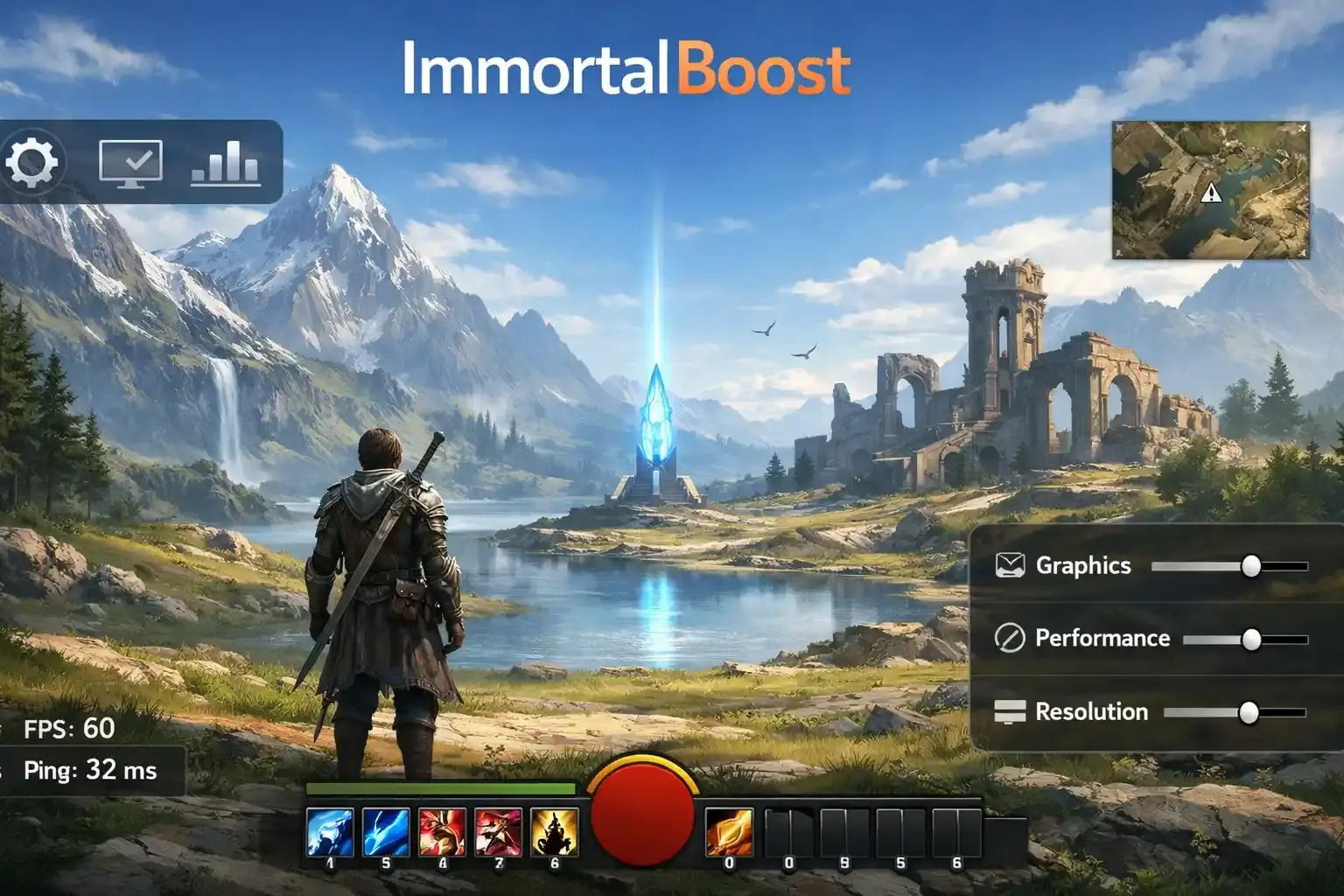
Guild Wars 2 benefits heavily from this flexibility. While the game is relatively easy to run, poor default settings can lead to frame drops, visual clutter, and inconsistent performance — especially in busy areas and large-scale events.
This guide focuses on practical, tested settings that improve performance, maintain visual clarity, and keep gameplay smooth without making the game look dated.
Struggling to stay competitive in Guild Wars 2 PvP due to low FPS, visual clutter, or slow progression? ImmortalBoost offers Guild Wars 2 PvP Boost to help you focus on performance, consistency, and winning matches without unnecessary setbacks.
Guild Wars 2 System Requirements (Baseline)
Before adjusting settings, it’s important to confirm that your system meets a reasonable baseline. Guild Wars 2 can run on modest hardware, but older systems may struggle without optimization.
| Component | Minimum Recommended |
|---|---|
| CPU | Intel i3 3.4 GHz / AMD Athlon X4 3.8 GHz |
| RAM | 8 GB |
| GPU | NVIDIA GTX 680 / AMD Radeon HD 7970 |
| VRAM | 2 GB |
| Shader Model | 5.0 |
| Storage | 70 GB free space |
While these specs are affordable today, a modern CPU and GPU will provide a much smoother experience, especially during large-scale events.



Best Video Settings for Guild Wars 2
Display Settings
| Setting | Recommended Value | Reason |
|---|---|---|
| Resolution | Monitor native | Prevents scaling issues |
| Fullscreen Mode | Fullscreen | Improves performance stability |
| V-Sync | Off | Reduces input lag |
| FPS Cap | 60 FPS | Stable performance target |
Graphics Settings
| Setting | Recommended Value |
|---|---|
| Graphics Mode | Manual |
| Textures | High |
| Shadow Quality | Low |
| Lighting Quality | Medium |
| Ambient Occlusion | Low |
| Particle Processing | Low |
| Environment Detail | Medium |
| Character Detail | Medium |
| Effect Detail | Low |
| Vegetation Density | Low |
| Anti-Aliasing | FXAA |
| Shadow Cascades | 1 |
| High-Resolution Shadows | Off |
These settings preserve visual quality while significantly reducing frame drops during combat-heavy encounters and crowded areas.
Best UI Settings for Visibility and Performance
UI clutter and character rendering are major causes of FPS drops in Guild Wars 2. Reducing unnecessary elements improves both clarity and performance.
| Setting | Recommended Value |
|---|---|
| UI Size | Small |
| Field of View | Max |
| Camera Shake | Off |
| Character Model Limit | Low |
| Character Model Quality | Low |
| High-Resolution Character Textures | Off |
| Player Names | Off / Hover Only |
Combat & Control Settings
- Fast-Cast Ground Targeting: Instant
- Snap Ground Target to Target: On
- Autotargeting: Off
- Skill Retargeting: On
- Action Camera: Optional
- Show Tutorials & Skill Help: Off
Best Audio Settings
| Setting | Recommended Value |
|---|---|
| Master Volume | 40–60% |
| Music Volume | 10–20% |
| Effects Volume | 70–100% |
| Dialogue Volume | 40–60% |
| Ambient Volume | 10–20% |
| Audio Quality | Medium |
| Audio Reverb | Off |
| Doppler Effect | Off |
| Audio Ducking | Off |
| Speaker Setup | Stereo |
Final Thoughts
There is no single perfect settings setup for every player. However, the configuration above provides a strong balance between performance, clarity, and visual quality for most systems.
Use this guide as a foundation, then adjust individual settings based on your hardware and personal preference. A smooth experience always matters more than maxed-out visuals.