Genshin Impact FPS Lag Fix Guide
Complete Solutions for Mobile and PC Performance Issues
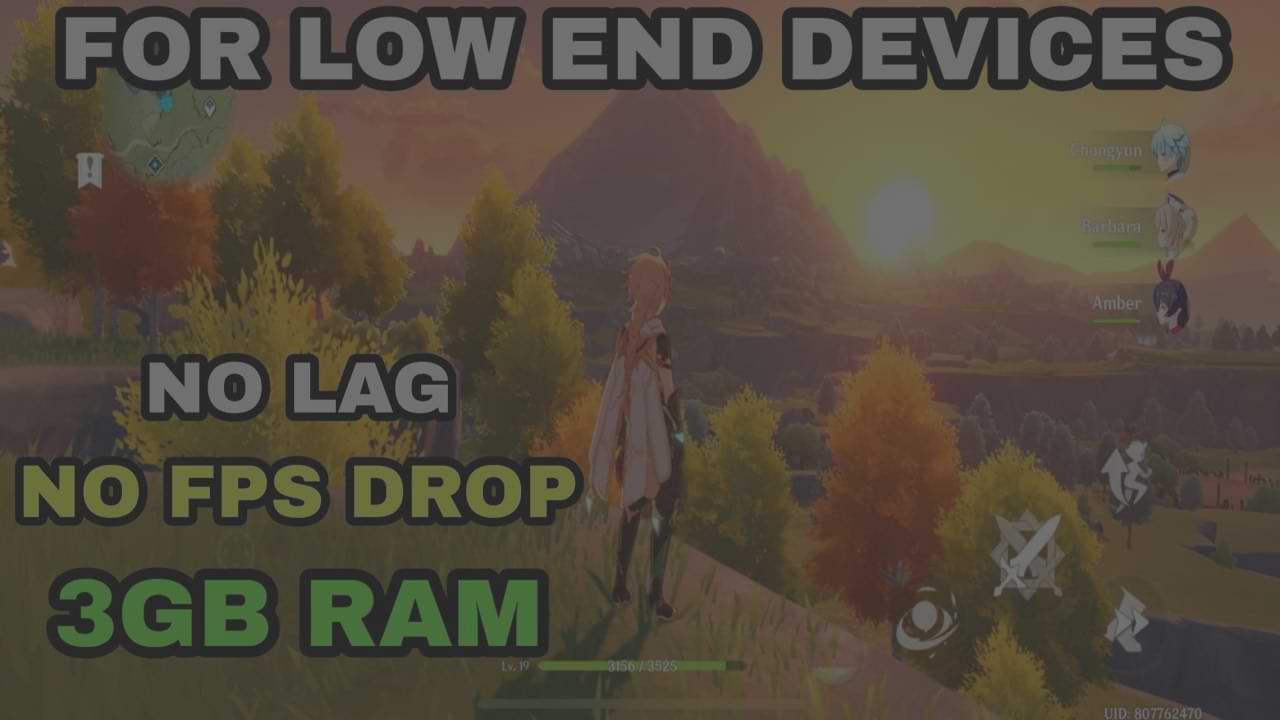
Discover everything you need to know about fixing FPS lag in Genshin Impact on Mobile and PC, and what factors cause lag.
Optimize your game settings, manage background processes, and update your hardware and software to mitigate FPS lag in Genshin Impact. Facing low or high FPS is the major issue that most players face while playing the game on Mobile or PC. Lowering crowd density can reduce the number of NPCs, potentially improving performance.
High device temperatures can lead to throttling and performance drops. Moving the game files to an SSD can significantly improve loading times. Make sure your graphics drivers are up-to-date to ensure optimal performance.
🖥️ How to Boost FPS and Fix Lag for PC
Search for “create restore point” on your system and look for your Local Disk C (or the drive marked as System). Click on Configure and make sure the third option on System Protection is enabled.
Once done, press the close button and close the System Properties window.
Go into your Settings section and search for “Game Mode”. Click on “Turn on Game Mode” and make sure that Game Mode is enabled.
Right beneath Game Mode, find your Graphics Settings. Click on “Change Default Graphics Settings” and enable both options.
Search for “Storage Sense” and select “Turn on Storage Sense”. Make sure Storage Sense is enabled and copy these settings:
Click “Run storage sense now” and let it run in the background.



⚙️ Advanced PC Optimization
Search for “Adjust the Appearance and Performance of Windows”. When the window appears, select “Adjust for best performance”.
Search for “System Configuration” on Windows. This relates to your boot settings:
This helps boot your PC faster and increases gaming performance long-term.
For ping-related issues in Genshin Impact, consider using ExitLag – one of the best applications to reduce ping.
🎮 Best In-Game Settings for Higher FPS
Once loaded in-game, press Escape and go to Settings. Navigate to Graphics Settings and apply these recommended settings:
| Setting | Recommended Value | Notes |
|---|---|---|
| FPS | 60 | Maximum for optimal performance |
| V-Sync | On | Better performance in Genshin (can turn off if issues) |
| Render Resolution | 0.8 or 0.6 | Choose whichever gives better FPS |
| Shadow Quality | Low | Significant performance impact |
| Visual Effects | Lowest | Reduces GPU load |
| SFX Quality | Low | Audio processing optimization |
| Environment Detail | Lowest | Major FPS improvement |
| Anti-Aliasing | SMAA | Balance quality and performance |
| Volumetric Fog | Off | Heavy performance impact |
| Reflections | Off | GPU-intensive feature |
| Motion Blur | Off | Personal preference + performance |
| Bloom | Off | Personal preference |
| Crowd Density | Low | Reduces NPC count |
| Co-Op Teammate Effects | Off | Multiplayer performance |
| Subsurface Scattering | Off | Advanced rendering feature |
📱 Fix Genshin Impact Lagging and FPS Drops on Mobile
Many Genshin Impact gamers experience lagging issues and FPS drops on Android. Here are the essential settings to fix these problems:
🚀 Boost System Performance
📱 App Management
🔄 Game Updates & Maintenance
🛠️ Additional Mobile Optimization Tips
🌐 Enhance Network Connection
Use Wi-Fi instead of cellular data. Get close to the router for stronger signals and more stable connection.
🔄 Close Background Processes
Close unnecessary apps running in background to free up device resources. Use task manager or device settings.
🎮 Adjust Graphics Settings
Lower graphics settings like resolution, texture quality, and effects to improve FPS and reduce lag.
🧹 Maintain Your Device
Clear cache and remove temporary files regularly to create sufficient storage space for smooth progression.
🌡️ Check Heat and Performance
Prevent device overheating. Use cooling pads and take breaks to avoid performance throttling issues.
💬 Contact Support
Reach out to the game’s support team if you’re still experiencing problems after trying all optimization steps.
🎯 PC Hardware Tips
Hardware Upgrades for Better Performance
💾 Storage
Move game files to an SSD for significantly improved loading times and reduced stuttering.
🖥️ Graphics Drivers
Keep graphics drivers up-to-date using GeForce Experience (NVIDIA) or AMD support website.
🖱️ High DPI
Enable high DPI settings in Genshin Impact properties for better display scaling and performance.
🔥 Temperature Management
Consider undervolting CPU and GPU using Intel XTU/ThrottleStop (CPU) and MSI Afterburner (GPU).