How to Play Fortnite on iPhone, PC, and Chromebook
Complete Cross-Platform Gaming Guide
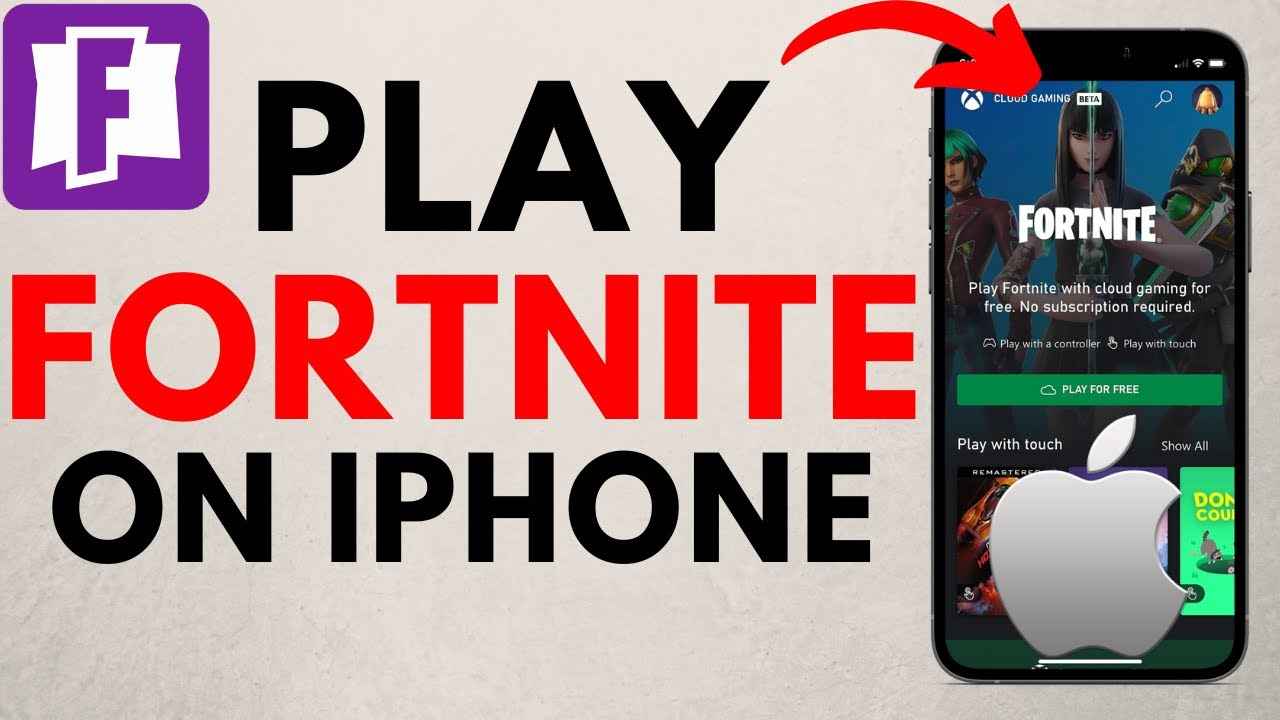
Discover everything you need to know about playing Fortnite on iPhone, PC, Chromebook, and which steps required to download it.
Fortnite is a free-to-play game that requires specific conditions to play on iPhone, PC, and Chromebook. Some players choose to play on PC or iPhone, while others prefer playing on Chromebook. However, each device requires certain conditions and requirements to dive into the adventure.
Most players opt to play the game on PC because it is easy to play on it, and you get more control over your gameplay while fighting a cluster of enemies. Players can play Fortnite on iPhones through cloud gaming services like Xbox Cloud Gaming, accessible through a web browser. The game is officially supported on PCs. You can download the game from the Epic Games website.



How To Play Fortnite on PC
Playing Fortnite on PC is simple if you meet all the required conditions. You need to download and install the Epic Games Launcher to launch the game on PC. After that, download Fortnite from the Epic Games Store within the launcher. Now, launch the game after the installation is complete.
Complete Installation Steps:
- Make sure to download and install the Epic Games Launcher. Visit the Epic Games website to download the launcher
- You need to create an Epic Games account or log in, allowing you to gain access to the Fortnite game
- Search for “Fortnite” in the store section of the launcher to find Fortnite in the Epic Games Store
- Press the LMB on the “Install” button and choose your preferred installation location
- Launch Fortnite from the Launcher once installation is complete
Fortnite’s System Requirements
In order to launch Fortnite, your system must meet the requirements. So, before installing the game, make sure your system meets its requirements. Below are Fortnite’s system requirements, including minimum, recommended, and Epic quality.
Minimum System Requirements
| Component | Requirement |
|---|---|
| OS | Windows 10 64-bit version 1703 |
| Processor | Core i3-3225 3.3 GHz |
| Graphics Card | Intel HD 4000 on PC; AMD Radeon Vega 8 |
| Memory | 8GB RAM |
Recommended System Requirements
| Component | Requirement |
|---|---|
| OS | Windows 10 64-bit |
| Processor | Core i5-7300U 3.5 GHz, AMD Ryzen 3 3300U, or equivalent |
| Graphics Card | Nvidia GTX 960, AMD R9 280, or equivalent DX11 GPU |
| Video Memory | 2 GB VRAM |
| Memory | 16 GB RAM or higher |
Epic Quality Requirements
| Component | Requirement |
|---|---|
| OS | Windows 10 64-bit |
| Processor | Intel Core i7-8700, AMD Ryzen 7 3700x or equivalent |
| Graphics Card | Nvidia GTX 3070, AMD Radeon RX 6700 XT, or equivalent GPU |
| Video Memory | 8 GB VRAM or higher |
| Memory | 16 GB RAM or higher |
| Hard Drive | NVMe Solid State Drive |
Setup and Configuration
Downloading the game will take 30 minutes to an hour to fully complete. Move to the Epic Games library after installing the game, and click on the Fortnite icon on the left side of the Epic Games library interface.
Core Game Modes and Community Game Modes are the two different game modes in Fortnite. Core Game Modes are always available to play, but Community Game Modes are the maps that other players create.
How to Play Fortnite on iPhone
Fortnite was removed from the App Store in 2020 due to legal disputes between Epic Games and Apple. Back in those days, it was too easy to download and play this game on an iPhone. This has resulted in Fortnite being unavailable on iPhones and iPads worldwide.
Xbox Cloud Gaming (XCloud)
Steps:
- Create an Xbox/Microsoft account on the Microsoft Signup page
- Move to Fortnite on Xcloud on your iPhone
- Select “Continue Anyway” to start the game if you aren’t using a controller, or click “Play” if you’re using a controller
Amazon Luna
Steps:
- Make sure you have the membership of Amazon Prime in order to use Amazon Luna. If you aren’t already subscribed, you can start with a free trial
- Make your way to the Luna page for Fortnite
- Press the “Play free with Prime” button
- You need to sign in with your Amazon account
- Link your Epic account and tap on “Start” to start your journey in the game
GeForce Now
Nvidia’s GeForce Now is the last streaming service that allows you to play Fortnite on an iPhone. Use this service to stream a free-to-play game without requiring to subscribing to its service. However, this limits playtime to one hour. But you can upgrade to a Premium subscription to play the game forever.
Steps:
- Navigate to the Fortnite page on GeForce Now
- Make sure to log in to your free or paid Nvidia account
- Tapping on “Play” will launch the game, allowing you to dive into the action-adventure
Download Fortnite Mobile on iOS in the EU
Steps for EU users:
- Navigate to the Fortnite for iOS download page
- You need to scan the QR code with your iPhone and download the Epic Games Store
- Launch the Epic Games Store app to locate the Fortnite app
- Download it and log in!
How To Play Fortnite on Chromebook
Different methods can allow you to play Fortnite on a Chromebook. So, choose the best one. Here are all the methods you can choose from to download and launch the game.
Epic Games Launcher via Linux
Install the Linux (Beta) environment and run Epic Games Launcher to play Fortnite.
Steps:
- Enable Linux on Your Chromebook. Navigate to your settings to locate the “Linux (Beta)” section. Make sure to enable it on your Chromebook
- Download the Epic Games Launcher for Linux once Linux is set up on your Chromebook
- Follow all the instructions after opening the Terminal
- Now, launch the Epic Games Launcher and install Fortnite after installation
Xbox Cloud Gaming
Using the Xbox Cloud Gaming allows you to stream games like Fortnite on your Chromebook.
Steps:
- Navigate to the Xbox Cloud Gaming website and log in with your Microsoft account. However, this will require an Xbox Game Pass subscription to use this service
- Make sure to locate Fortnite in the game library. This cloud-based service doesn’t require many Chromebook specs. This makes it the best option if you’re using a low-end device to play Fortnite
NVIDIA GeForce NOW
NVIDIA GeForce NOW is the best cloud gaming service to play Fortnite.
Steps:
- Make sure to create an account on the NVIDIA GeForce NOW website. You will gain access to the service from your Chromebook’s browser after signing up
- Look for Fortnite in the GeForce NOW library to play the game
- However, you need to connect to your Epic Games accounts. Choose Go To Settings if you haven’t
- Follow the instructions by selecting Connect
- Now, log in again, as GeForce Now will ask you to log in to your Epic Games account. Make sure to connect it if you want a quicker login
Chrome Remote Desktop
Use this method if you’re accessing a PC to run Fortnite.
Steps:
- Make sure to sign into the Google account on both your Chromebook and Windows computers
- Launch Chrome on your Windows PC
- You need to install the Chrome Remote Desktop extension
- Explore the Chrome Remote Desktop web app
- Press the Download button available under the Set up remote access
- Install the downloaded file and run the installer
- Give the name to your computer and press the Next button
- Select a PIN code choose the Start button
- Launch Chrome after moving to your Chromebook
- Move to the Chrome Remote Desktop website and press LMB on Access my computer
- Choose the Windows PC to enter the PIN and click on Enter
Platform Comparison
Each platform offers different advantages and challenges for playing Fortnite:
🖥️ PC Gaming
Best Performance: Full control, highest frame rates, customizable settings, and access to all features. Ideal for competitive gaming.
📱 iPhone Gaming
Cloud Gaming: Portable gaming through streaming services. Requires stable internet but offers flexibility to play anywhere.
💻 Chromebook Gaming
Multiple Options: Linux installation, cloud gaming, or remote desktop. Good for budget-conscious gamers with various technical solutions.