


A Fortnite FPS boost can make you a great player! Well… not really! But hear me out, maximizing FPS can significantly improve your gameplay by assisting you with aiming and response time.
Low FPS can cause input delays, which can interrupt game immersion, making the game too choppy and sluggish to enjoy.
Let’s check out the top ways you can increase FPS in Fortnite.
Related Guide:
- Fortnite Steal the Brainrot Codes Guide
- Fortnite Festival Guide: Everything to Know About Epic’s New Mode
- Fortnite: How to Play on iPhone, PC & Chromebook
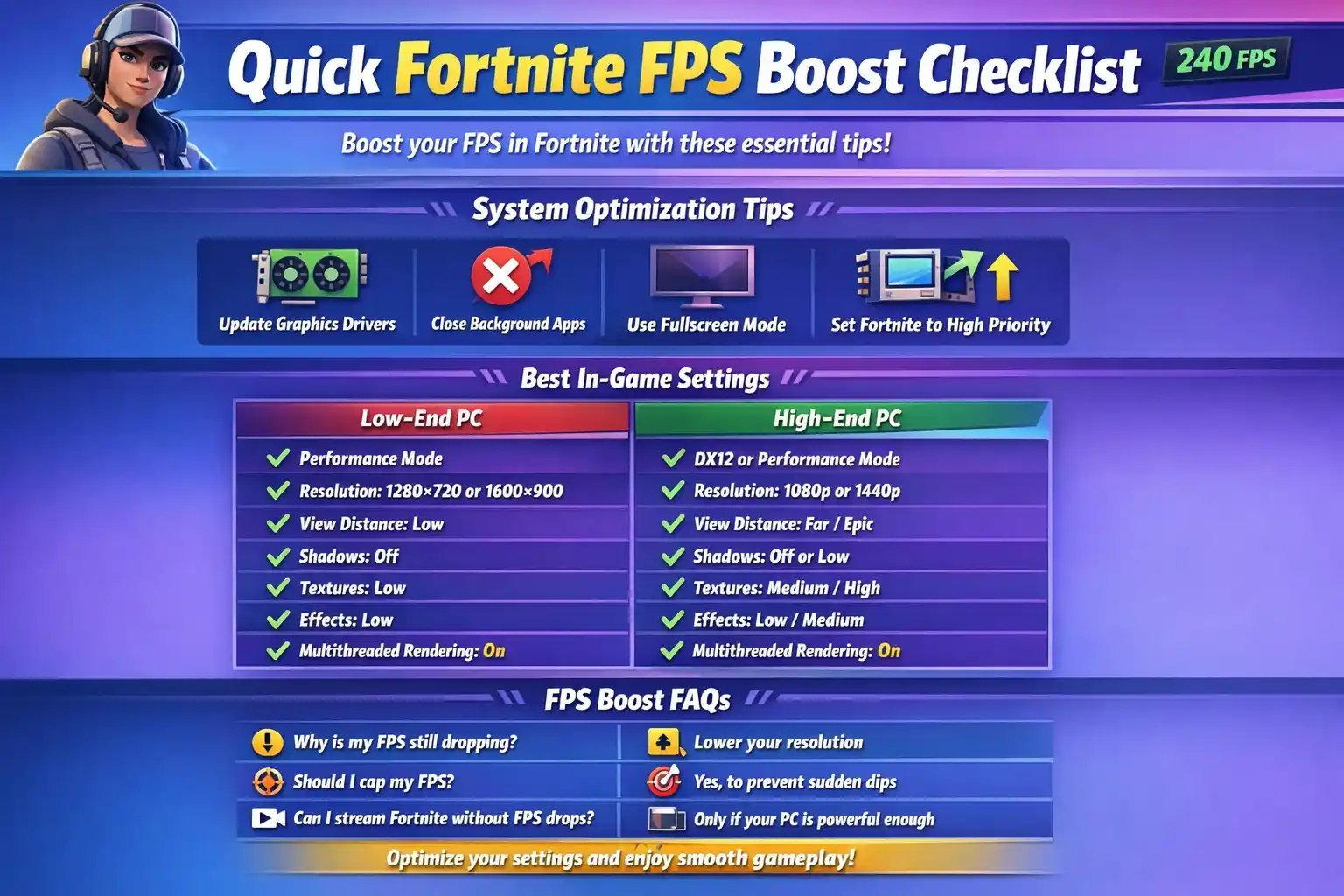
Quick Fortnite FPS Boost Checklist
| Optimization Area | Recommended Action | FPS Impact |
| Graphics Drivers | Update to the latest version | High |
| Background Apps | Close unnecessary programs | Medium–High |
| Window Mode | Use Fullscreen | Medium |
| Rendering Mode | Performance Mode / DX12 | High |
| Shadows | Turn Off | High |
| Resolution | Lower if unstable | High |
System Optimization Settings for FPS Boost
Before you change the in-game settings, let’s make sure your system isn’t holding you back.
Update Graphics Drivers
One of the most common reasons for frame drops can be outdated GPU drivers. Check for any driver updates to achieve better performance and stability.
Close Background Apps
One of the hidden culprits behind low FPS is the number of applications you have running in the background. Browsers, Discord, or cloud services can eat up RAM and CPU power. So, make sure to close them and restart your PC to free up resources for your gameplay!
Use Fullscreen Mode
Playing in full-screen mode allows your PC to prioritize Fortnite over other applications. This direct access to your GPU helps reduce input lag and boosts FPS.
Set Fortnite to High Priority
Setting Fortnite to High Priority in Task Manager can help your CPU focus on the game instead of the background tasks.
Best Fortnite In-game Settings for FPS Boost
These settings are at the center of any Fortnite FPS boost. By reducing any visual load, these settings will help prioritize the gameplay.
Recommended In-Game Settings Overview
| Setting | Low-End PC | High-End PC | FPS Benefit |
|---|---|---|---|
| Rendering Mode | Performance Mode | DX12 / Performance | Very High |
| Resolution | 1280×720 / 1600×900 | Native (1080p/1440p) | High |
| View Distance | Low | Far/Epic | Medium |
| Shadows | Off | Off/Low | High |
| Textures | Low | Medium/High | Medium |
| Effects | Low | Low/Medium | Medium |
| Post Processing | Low | Low | Medium |
| Multithreaded Rendering | On | On | High |
Video Settings
Make sure to keep the window mode at fullscreen. The resolution should be set to Native; lower it if the FPS is still unstable. Make sure V-sync is off to avoid input lag. Set Frame Rate Limit to Unlimited or match your monitor’s refresh rate. Finally, the rendering mode should be set to Performance Mode.
Graphics Quality Setting
First and foremost, the View Distance should be kept at medium or low for a weak PC. Shadows should be turned off, as well as the Anti-Aliasing. Textures can be kept at low or medium. Whereas Effects and Post Processing should be set to low.
These settings will remove any unnecessary visual effects and boost FPS.
Best Settings for Low-End PCs
Having a low-end PC does not mean you can’t enjoy Fortnite! These settings will improve performance over visuals, so you can experience a smoother play.
- Rendering Mode: Set to Performance Mode to reduce visual load.
- Resolution: Resolution should be set to 1280×720 or 1600×900 to lighten the GPU load.
- View Distance: Set it to low so your system only renders nearby structures, improving performance in crowded areas.
- Shadows: Turn off because shadows consume a lot of GPU power.
- Textures: Keep textures at low to reduce memory usage.
- Effects: Effects should be set to low.
- Post processing: Set to low to avoid visual clutter.
- Multithreaded Rendering: Turn on the multithreaded rendering for overall game stability and performance.
This system setup will stabilize the FPS and make it consistent by reducing stutters in crowded zones during gameplay.
Best Settings for High-End PCs
High-end PCs can handle good visuals while maintaining higher FPS. These settings will help balance the visual clarity along with the consistent FPS. Avoiding unnecessary frame drops.
- Rendering Mode: It should be set to DirectX 12 or Performance Mode to take full advantage of your PC while maintaining high FPS.
- Resolution: Resolution should be set to Native (1080p or 1440p).
- View Distance: Set it to far or epic to spot enemies from a distance.
- Shadows: Turn off or set to low because shadows have minimal impact on gameplay, but can affect FPS.
- Textures: Keep textures at medium or high for better visuals while keeping performance stable.
- Effects: Effects should be set to low or medium for visual clarity with smooth FPS during fights and explosions.
- Post processing: Set to low to remove extra visual effects that don’t help gameplay, but can slightly reduce FPS.
- Multithreaded Rendering: Turn on the multithreaded rendering for smoother overall experience.
Conclusion
You don’t have to worry about expensive upgrades when it comes to FPS boost in Fortnite. You can achieve the desired results by making some system tweaks and smart settings. Whether you have a high-end or low-end PC, optimizing your system can make for a smoother play.
Set it up, and enjoy your game without any lag!
Frequently Asked Questions (FAQs)
What should I do if my FPS still drops during Fortnite
Lower your in-game resolution to reduce workload on your GPU and stabilize FPS during intense fights.
Should I cap my FPS for smoother play?
Yes, capping your FPS can help prevent sudden dips and choppy gameplay.
Are graphics driver updates important for FPS?
It is crucial to keep your Windows and Graphic Drivers up to date to ensure Fortnite runs efficiently and reduces crashes.
Can I record or stream while playing Fortnite without FPS drops?
That depends on your PC. If your PC is powerful enough, you can. However, keep in mind that streaming uses extra CPU/GPU power, which can lower FPS.