Fortnite Appear Offline Guide
Master Your Online Status and Privacy Settings
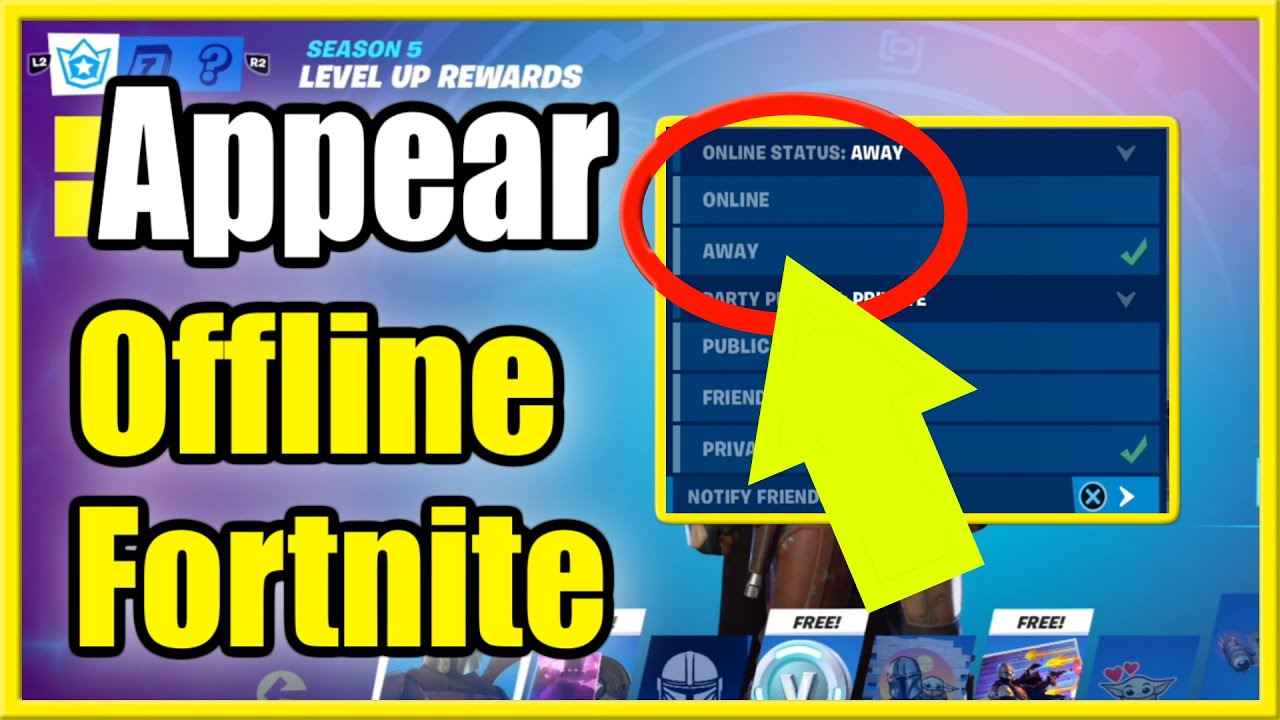
Discover everything you need to know about appearing offline in Fortnite and how this feature works.
Fortnite is a free-to-play game available on different platforms like PC, PlayStation, Xbox, Nintendo Switch, and mobile devices. The game allows players to dive into the action solo or with their teammates. Sometimes you may prefer to play solo, rather than being disrupted by the invites. So, appearing offline can help you in this case.
The game doesn’t offer you a direct offline mode, but you can make some adjustments to appear offline. This method allows you to avoid being distracted while playing solo. There is a chance that Epic Games may add an offline feature in the upcoming updates. In this guide, we’ll discuss how to appear offline in Fortnite and what the limitations of the offline mode are.




Change Online Status in Fortnite
Here are all the steps you need to know to change your online status in Fortnite:
General Fortnite Steps:
- Launch the Fortnite game on the platform
- Access to the menu by clicking on the three horizontal lines located at the top left-hand corner
- On the top left-hand side of the menu, click on your profile picture
- Locate the “Online Status” option
- Toggle the Online Status to “Away”, allowing you to appear offline in the game
- Control the gaming session by clicking on the “Party Privacy”
- Change the Party Privacy option to “Private”
Platform-Specific Instructions
Different platforms have their own methods for changing your online status. Here’s how to do it on each platform:
Steps to Change Status:
- Make sure to launch the Epic Games Launcher on your PC
- On the top right-hand corner of the launcher, you need to click on your profile picture
- Find the settings by scrolling down and locating the “Enable Offline Mode Browsing” option below the “Preferences”
- Activate the offline status in the Epic Games Launcher by simply clicking on the checkbox
Steps to Change Status:
- Launch Xbox Live on your Xbox console
- On the top left-hand side of the menu, click on your profile picture
- Select the “Appear Offline” option after you scroll down. This allows you to change your online status
Steps to Change Status:
- Launch Fortnite on your PlayStation
- Hit the Triangle button to access settings after hitting the X button to open the main menu
- Choose “Select Away” to appear offline under the “Online Status”
- Change the “Party Privacy” to “Private” for extra control
Understanding Online Status Options
To manage your status in Fortnite, start by opening the Social Hub. You do this by clicking on your avatar, which is located in the top left corner of the main menu screen. Once you’ve clicked on your avatar, it will bring up your online profile and options.
Available Status Options
Additional Privacy Settings
Offline Mode Limitations
⚠️ Important Limitations to Know
Fortnite is an action-survival game that doesn’t offer offline mode like other games. Using the Away status in the game allows you to mitigate the incoming invites. However, this doesn’t make you fully invisible.
This makes this feature different from the other games, where you don’t even appear active in the lobby. Unlike some other games that let you appear fully offline while playing, Fortnite’s system only provides these two status options.
What You Can Control
Privacy Controls Available:
- Set your status to “Away” to reduce invitations
- Change Party Privacy to “Private” to prevent uninvited joins
- Set Party Joinability to “Invite Only”
- Manage who can send you friend requests
Conclusion
While Fortnite doesn’t offer a true offline mode, you can effectively manage your online presence and reduce unwanted interruptions using the available privacy settings.
It’s important to note that these are the only two options Fortnite provides for managing your visibility to others. Unlike some other games that let you appear fully offline while playing, Fortnite’s current system has limitations.