


In competitive video games, performance is never purely based on talent. While there are always naturally gifted players, experience almost always plays a bigger role in long-term success. Players who have spent more time in a game tend to understand its mechanics better, react faster to situations, and make more informed decisions during gameplay.
This advantage comes from repetition, pattern recognition, and exposure to different in-game scenarios. Over time, experienced players develop strong game sense. They understand positioning, timing, and how different players behave in different situations.
However, there is another factor that can significantly impact your performance without requiring hundreds of hours of practice. That factor is your in-game settings.
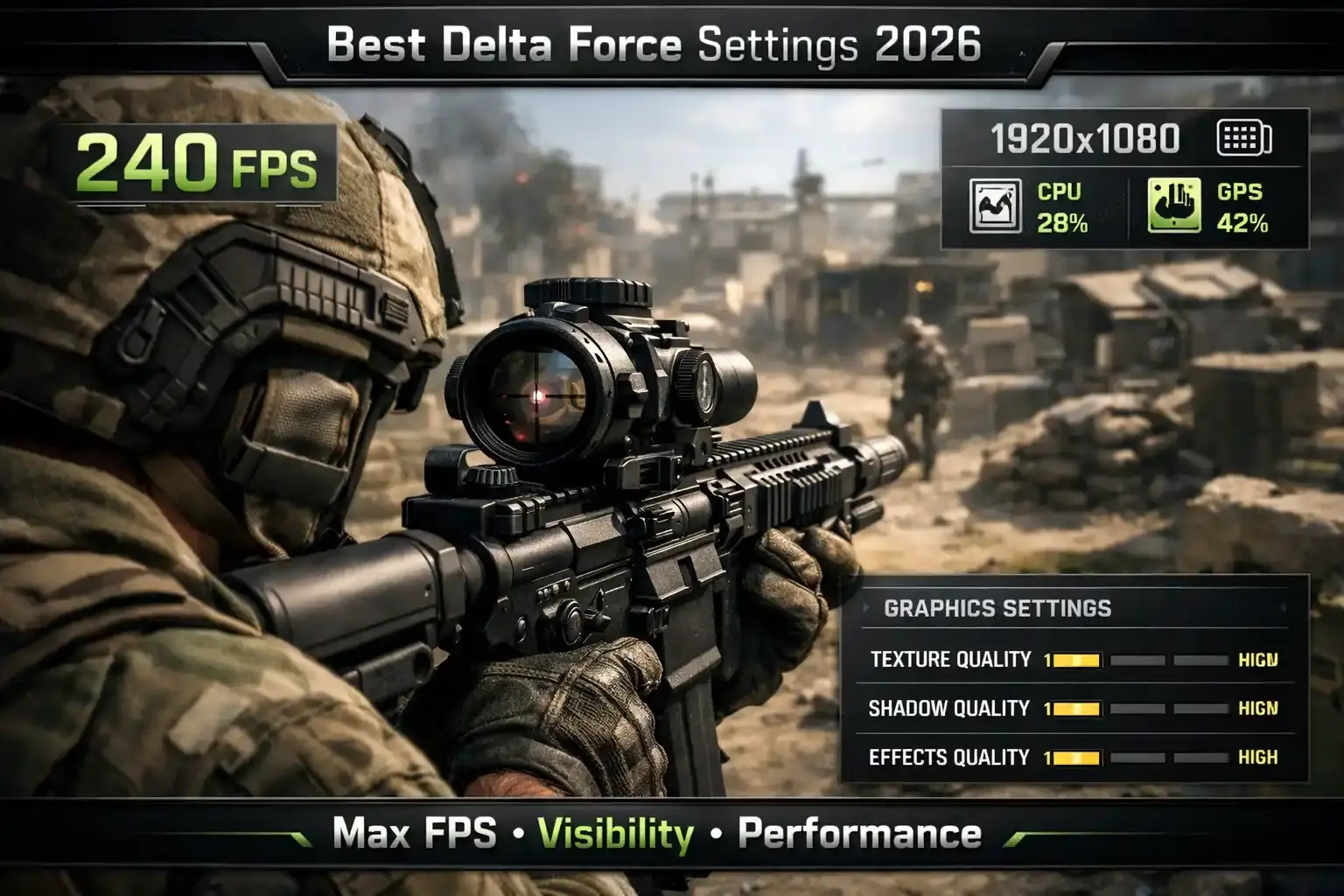
The right settings can improve your reaction time, reduce input lag, increase visibility, and enhance audio awareness. These improvements directly affect how quickly and accurately you respond to enemies.
In this blog, we are going to focus on Delta Force. More specifically, we will go through the best settings that can help you perform better. These settings are designed to give you a competitive advantage by making the game smoother, clearer, and more responsive.
Struggling to survive intense fights and complete objectives in the Zero Dam map? With Zero Dam Raid, you can skip the chaos, secure your rewards efficiently, and complete high-stakes runs with expert support and guaranteed results.
Related Guides:
Minimum System Requirements
Before adjusting your settings, it is important to understand whether your system can handle the game properly. Settings optimization only works effectively if your hardware meets a basic performance threshold.

Minimum Specs
- CPU: Intel Core i3-4150 / AMD FX-6300
- RAM: 12 GB
- GPU: Nvidia GeForce GTX 960 / AMD R9 380 / Intel Arc A380
- VRAM: 2048 MB
- OS: Windows 10 64-bit
- Shader Model Version: 6.0
- Free Disk Space: 50 GB
These specifications represent the minimum level required to run Delta Force. While it is possible to play the game on slightly lower specifications, doing so will result in lower frame rates, stuttering, and reduced visual clarity.
If your goal is competitive gameplay, this level of hardware should be considered a baseline rather than a target.
Recommended System Requirements
If you want a smoother experience and better performance, upgrading your system becomes necessary. A stronger system allows you to maintain stable frame rates and reduce input latency.
Recommended Specs
- CPU: Intel Core i5-6500 / AMD Ryzen 5 1500X
- RAM: 16 GB
- GPU: Nvidia GeForce GTX 1060 5GB / AMD RX 5500 XT / Intel Arc A580
- VRAM: 5 GB
- OS: Windows 10 64-bit
- Shader Model Version: 6.0
- Free Disk Space: 50 GB
With these specifications, you can achieve stable performance above 60 FPS. This is important because consistent frame rates improve responsiveness and make aiming more precise.
A stronger system also allows you to balance visuals and performance without sacrificing one for the other.
Best In-Game Settings Overview
Delta Force settings can be divided into three main categories:
- Display settings
- Graphical settings
- Audio settings
Each category plays a different role in your overall performance. Display settings control responsiveness, graphical settings impact visibility and FPS, and audio settings improve awareness.
Understanding how these categories interact will help you make better adjustments.
Display Settings
Display settings determine how the game is presented on your screen and how responsive it feels during gameplay.
Recommended Display Settings
- Resolution: Native
- Aspect Ratio: Native
- Refresh Rate: Highest available
- Frame Rate Cap: Unlimited
- V-Sync: Off
- NVIDIA Fast Sync: Off
- FOV: 120
Why These Settings Matter
Using native resolution ensures maximum image clarity. Lower resolutions may increase FPS, but they reduce visual detail, which can make it harder to spot enemies.
A higher refresh rate makes gameplay smoother and improves tracking accuracy. Disabling V-Sync reduces input lag, which is critical in fast-paced situations.
A wider field of view allows you to see more of your surroundings, giving you better awareness and positioning advantages.
Graphical Settings
Graphical settings have the biggest impact on performance and visual clarity. The goal is to reduce unnecessary visual effects while keeping important details visible.
Recommended Graphical Settings
- NVIDIA Reflex Low Latency: On or Boost
- Super Resolution: Quality (DLSS or FSR 3.0)
- Texture Quality: High
- Shadow Quality: Medium or Low
- Global Illumination: Low
- Effects and Particles: Low
- Ambient Occlusion: Off or Medium
- Motion Blur: Off
- Depth of Field: Off
- Scope Magnification: Off
- Reflections: Off
- Shaders: Ultimate
- Streaming: Ultimate
- Post Processing: Extreme
- Shadow Map: Extreme
- Volumetric Fog: Low
Understanding Settings Impact
If you want to fine-tune your settings instead of following presets, understanding each option is important.
| Setting | Function | Impact on FPS |
|---|---|---|
| NVIDIA Reflex | Reduces input lag | No FPS gain |
| Super Resolution | Upscales resolution | High FPS gain |
| Texture Quality | Surface detail | Low impact |
| Shadow Quality | Shadow detail | High impact |
| Global Illumination | Lighting realism | High impact |
| Effects | Explosions and particles | Medium impact |
| Ambient Occlusion | Depth shading | Low impact |
| Motion Blur | Movement blur | Minimal |
| Depth of Field | Background blur | Minimal |
| Reflections | Surface reflections | Variable |
| Shaders | Rendering complexity | Medium |
| Streaming | Asset loading | Improves stability |
| Shadow Map | Shadow resolution | High impact |
| Volumetric Fog | Atmosphere effects | Medium |
Reducing heavy settings like shadows and lighting improves FPS significantly, while keeping textures high maintains visual clarity.
Audio Settings
Audio plays a major role in competitive gameplay. It allows you to detect enemy movement, locate gunfire, and react faster to threats.
Recommended EQ Settings
- 55 to 70 Hz: +0 dB
- 105 to 120 Hz: -1 dB
- 150 to 200 Hz: +0 dB
- 500 to 700 Hz: +0 dB
- 1k to 2k Hz: +0 dB
- 4k to 6k Hz: +3 dB
- 7k to 9k Hz: +4 dB
These adjustments enhance important sounds such as footsteps and weapon fire, making them easier to detect.
In-Game Audio Settings
- Audio Output Mode: Headphones
- HRTF: On
- Master Volume: 100
- Sound Effects Volume: 100
- UI Volume: Low
- Music Volume: 0 to 25
- Voice Volume: 0 to 50
You can also test spatial audio settings in Windows to find what works best for your setup.
Keyboard and Mouse Settings
Input settings depend on personal preference, but some general guidelines improve consistency.
Mouse Settings
- DPI: 800 to 1600
- Sensitivity: 5 to 8
- Vertical and Horizontal Sensitivity: 1.0
- Aim Mode: Hold
- Scope Magnification: On
These settings provide a balance between precision and control.
Keyboard Settings
There is no universal keybind setup.
The most important principle is:
- Keep keybinds close together
This allows faster reactions and smoother gameplay.
Conclusion
The right settings can significantly improve your performance in Delta Force.
They help by:
- Reducing input lag
- Increasing frame rate stability
- Improving visibility
- Enhancing audio awareness
However, settings alone will not make you a better player. Delta Force is a skill-based game, and improvement comes from consistent practice and experience.
Use these settings as a foundation, and continue refining your gameplay over time.
FAQ (Delta Force Settings)
Is 8 GB RAM enough for Delta Force?
Yes, but it is not ideal. More RAM provides better stability and smoother gameplay.
How to improve performance in Delta Force?
Use optimized settings and ensure your system meets recommended requirements.
Is 32 GB RAM necessary?
No, but having extra RAM can improve overall system performance.
Why is my game lagging?
Check your internet connection or reduce graphical settings to improve performance.
Can Delta Force run on 6 GB RAM?
No. At least 8 GB is required for minimal stuttering and stable gameplay.