


Gaming serves as a vital escape for many, but for the highly competitive community, it is a pursuit of mastery. As players spend hours honing their skills, a small segment of the population seeks an unfair advantage through cheating. To protect the integrity of the experience, Electronic Arts (EA) has implemented a robust kernel-level anti-cheat system in Battlefield 6 known as Javelin.
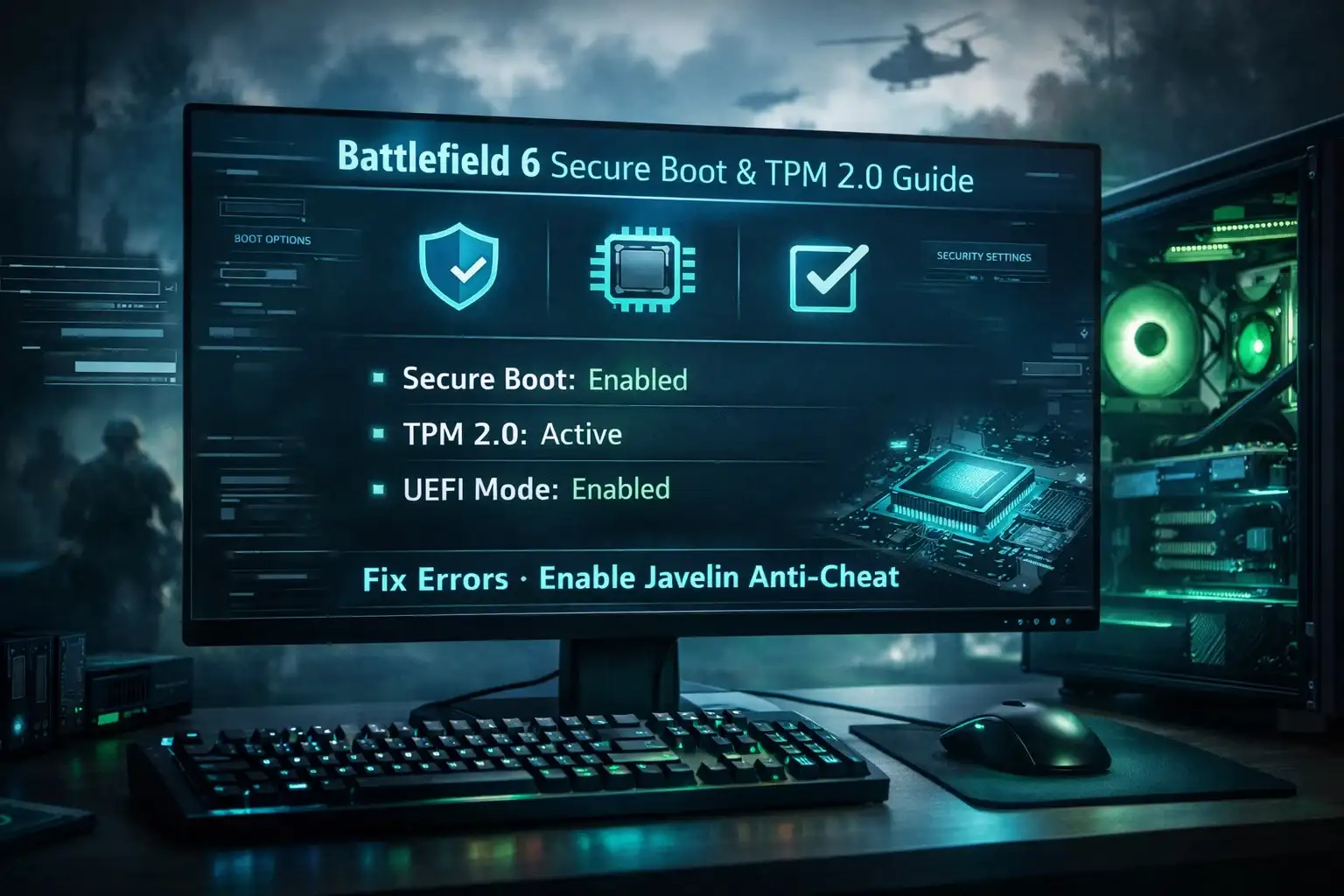
To ensure Javelin functions correctly and detects sophisticated breaches, Battlefield 6 requires Secure Boot and TPM 2.0 to be active. This guide explains how to configure these safety measures so you can play without technical hiccups.
Tired of spending your limited gaming hours grinding for vehicle XP instead of actually enjoying the thrill of high-stakes combat?
Dominate every engagement with our professional Battlefield 6 Vehicle Leveling service, where our veteran team handles the grind to unlock your war machine’s peak potential while you focus on the victory.
The Role of Secure Boot in Battlefield 6
To understand why this is necessary, we must look at the technical function of Secure Boot. It is a feature of the UEFI (Unified Extensible Firmware Interface) that ensures your computer only boots using software trusted by the PC manufacturer.

What Does Secure Boot Do?
- Chain of Trust: It creates a verified sequence from the moment you turn on your PC until the operating system loads.
- Malware Elimination: It blocks unauthorized code, such as rootkits, from executing during startup.
- Anti-Cheat Integration: By enabling Secure Boot, EA ensures that only signed, trusted software is running. This makes it significantly easier for the Javelin Anti-Cheat to identify memory editors or unauthorized third-party tools that attempt to hide within the boot sequence.
Hardware Requirements: TPM 2.0 and UEFI Compatibility
A critical component of Battlefield 6’s security is the Trusted Platform Module (TPM) 2.0. This is a hardware-level security requirement that modern games use for better player tracking and encryption.
| Feature | Requirement | Description |
| TPM Version | 2.0 | A hardware or firmware security chip required for BF6. |
| BIOS Mode | UEFI | Secure Boot cannot function in “Legacy” or “BIOS” mode. |
| Partition Style | GPT | Your Windows drive must use GPT rather than MBR for UEFI to work. |
| Minimum Hardware | Intel 7th Gen / Ryzen 2000 | Generally, CPUs older than Intel 5th/6th Gen lack TPM 2.0. |
Important Note: If your system lacks TPM 2.0 hardware, there is no software workaround. You will likely need to upgrade your motherboard and processor to meet the modern security standards required by Battlefield 6.
Step-by-Step Walkthrough: Enabling Secure Boot
Enabling these features is a straightforward process that takes place in your BIOS. While the menus vary by manufacturer, the logic remains consistent across all modern PCs.
1. Access the BIOS Menu
Restart your computer. As soon as the manufacturer logo appears on the screen, repeatedly press your BIOS hotkey.
- ASUS: F2 or Delete
- MSI: Delete
- Gigabyte: Delete
- HP/Dell: F10 or F12
2. Disable CSM (Compatibility Support Module)
Secure Boot is a UEFI-only feature. If your BIOS is running in “Legacy” mode via CSM, Secure Boot will be grayed out or unavailable.
- Navigate to the Boot tab.
- Find CSM or Compatibility Support Module.
- Set it to Disabled.
3. Enable Secure Boot and TPM
- Navigate to the Security or Advanced tab.
- Locate Secure Boot and set it to Enabled.
- Find the TPM setting. On Intel systems, it is often called Intel PTT (Platform Trust Technology). On AMD systems, it is called fTPM. Set this to Enabled.
- Press F10 to Save and Exit.
How to Verify Your Secure Boot Status
After your PC restarts, you should verify that the settings are active within Windows to ensure Battlefield 6 will launch correctly.
- Press Windows + R on your keyboard to open the Run dialog.
- Type msinfo32 and press Enter.
- In the System Information list, find Secure Boot State.
- If the value is “On,” your configuration is successful.
Troubleshooting Tip: If you cannot enable Secure Boot because your Windows was installed via “Legacy” boot, you may need to reinstall Windows with a UEFI-compatible partition. This is rare for modern PCs but can occur on upgraded older systems.
Conclusion
Modern security standards like TPM 2.0 and Secure Boot are the new norm in the gaming industry. These features allow developers to provide better tracking and a more secure environment for competitive play. If your system supports these features, enabling them is a simple process that ensures you can play Battlefield 6 without interruption.
- Enable UEFI by disabling CSM in your BIOS.
- Ensure Intel PTT or AMD fTPM is set to “Enabled.”
- Verify your settings using the msinfo32 command in Windows.
Following these steps will ensure your PC is fully optimized for the Javelin anti-cheat system, allowing you to focus on the game rather than technical errors.
Frequently Asked Questions (FAQ)
How do I enable Secure Boot for Battlefield 6?
You must enter your BIOS during startup (usually by pressing Del or F2), disable the Compatibility Support Module (CSM), and switch the Secure Boot setting to “Enabled.”
Do I need TPM 2.0 to enable Secure Boot?
While they are separate features, Battlefield 6 requires both. Secure Boot can technically be enabled without TPM, but the game will not run unless both TPM 2.0 and Secure Boot are active.
Why do I have to have Secure Boot on for Battlefield 6?
EA mandates Secure Boot to support enhanced security and the Javelin anti-cheat system. This ensures a fair environment by preventing unauthorized software from loading during the system boot.
Is there a way to play Battlefield 6 without a Secure Boot?
No. There is currently no legitimate workaround to bypass the Secure Boot or TPM 2.0 requirements for Battlefield 6.