


Changing your settings will not magically make you a better player, but with decent optimization, you can start working towards developing new skills, learning different techniques, and becoming a better player. If you combine this settings guide with good game sense, you might be able to 1v3 on a battlefield.
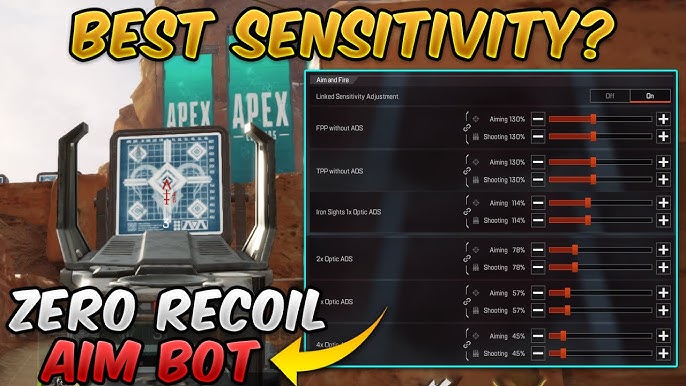
Lower your sensitivity to improve your ability to aim and track targets in Apex Legends. You have to deal with a large range of motions: long-range shots and recoil control, mid-range openings to intense close-range fights with movements. This means you need a sensitivity that’s comfortable at many ranges.
🎯 Best Sensitivity for Apex Legends
Below are our recommendations for the best mouse sensitivity you can set for optimal gameplay in Apex Legends:
⚡ Optimal Mouse Settings
| Setting | Recommended Value |
|---|---|
| eDPI | 1,200 |
| DPI | 800 |
| Mouse Sensitivity | 1.5 |
| ADS Mouse Sensitivity | 1.0 |
| Mouse Acceleration | Off |
| Mouse Invert | Off |
| Lighting Effects | Off |
The 800 DPI with 1.5 Mouse Sensitivity makes an eDPI value of 1,200. These settings are mostly used by pro players who love both rapid offensive and defensive strategies.
Understanding ADS Sensitivity
ADS Mouse Sensitivity controls how quickly your crosshair moves when aiming down sights. The game allows you to set per-optic ADS sensitivities and modify your sensitivity for each optic zoom level.
How to Change Mouse Sensitivity
- Launch Apex Legends and navigate to the main menu
- Click the settings icon in the lower right corner
- Select Mouse and Keyboard options tab to modify mouse settings
- Adjust your settings according to the recommendations above
- Press Apply to save all changes
- Test in Firing Range – It has an arsenal of weapons and multiple targets
📺 Video Settings for Maximum Performance
You need to lower the majority of your video settings to boost FPS in Apex Legends. Make sure the settings you choose never affect your ability to spot enemies.
🖥️ Optimal Video Configuration
Display Settings
Display Mode: Full Screen (single monitor) or Windowed (multiple monitors)
Aspect Ratio: Monitor Default
Resolution: Monitor Default
Brightness: Enhanced slightly for better visibility
Field of View: 90-110
Advanced Graphics
Anti-aliasing: None
Texture Streaming Budget: Low or Medium
Texture Filtering: Bilinear Filtering
Ambient Occlusion Quality: Disabled
Model Detail: Low
Shadow & Lighting
Sun Shadow Coverage: Low
Sun Shadow Detail: Low
Spot Shadow Detail: Low
Volumetric Lighting: Disabled
Dynamic Spot Shadows: Disabled
Performance Options
Effects Detail: Low
Impact Marks: Low or Disabled
Ragdolls: Low
V-Sync: Disabled
Sprint View Shake: Minimal
Special Settings
- NVIDIA Reflex – Enable if you have an NVIDIA GPU for reduced input lag
- Adaptive Resolution FPS Target – Keep disabled for consistent quality
- Adaptive Supersampling – Only boost when settings are turned down too low
🎮 Controller Settings Optimization
Apex Legends is such a fast-paced game that you need to shoot while healing, moving, jumping, and crouching. Here are the optimal controller settings for peak performance:
Basic Controller Configuration
| Setting | Recommended Value |
|---|---|
| Stick Layout | Default |
| Interact/Reload Button | Tap to Use/Hold to Reload |
| Crouch Button | Hold |
| Aim Button | Hold |
| Survival Slot Button | Off |
| Adaptive Triggers | On |
| Trigger Deadzones | None |
| Menu Cursor Speed | 50% |
Advanced Look Controls
🎯 Custom Look Settings
Response & Sensitivity
Custom Look Controls: On
Deadzone: 3%
Outer Threshold: 2%
Response Curve: 3
Movement Speeds
Yaw Speed: 255
Pitch Speed: 255
Turning Extra Yaw: 250
Turning Extra Pitch: 250
Turning Mechanics
Turning Ramp-up Time: 10%
Turning Ramp-up Delay: 0%
FOV: 90-110 (common range)
Aim Assist: Default or Traditional
🔊 Audio Settings for Competitive Advantage
Proper audio settings can give you a significant competitive edge in Apex Legends. Here’s how to optimize your sound for maximum performance:
| Audio Setting | Recommended Value | Purpose |
|---|---|---|
| Voice Chat Record Mode | Push to Talk | Better communication control |
| Open Mic Record Threshold | 1300 | Noise filtering |
| Incoming Voice Chat Volume | 100% | Clear team communication |
| Sound Effect Volume | 100% | Maximum game awareness |
| Dialogue Volume | 20% | Reduce distracting voice lines |
| Music Volume | 0% | Eliminate audio distractions |
| Lobby Music Volume | 0% | Focus on game sounds |
| Gameplay Volume when Spectating | 1% | Reduce ear damage when dead |
| Emote Preview Sound | Off | Eliminate unnecessary sounds |
| Sound in Background | On | Hear game when Alt-Tabbed |
💡 Tips and Tricks for Best Sensitivity
🔑 Key is Comfort
Most streamers, pro players, and creators will say their sensitivity is the best, but we are all built differently. Your ideal sensitivity depends on:
- Physical Factors – Arm length, hand size, height, and ergonomics
- Personal Traits – Anxiety levels, shaky hands, or calm demeanor
- Gaming Setup – Mouse pad size, chair height, and desk configuration
- Playstyle Preferences – Aggressive rushing vs. methodical positioning
Lower Sensitivity Analysis
✅ Pros
• Easier refined movement control
• Historically smoother aim precision
• Better for long-range engagements
• More consistent tracking
❌ Cons
• Harder to track fast-moving targets
• Can run out of mouse pad space
• Difficult to react to speed changes
• Tough on shoulders during long sessions
Higher Sensitivity Analysis
✅ Pros
• Faster reaction times for flicks
• Better target switching capabilities
• Easier to create flow with aim
• Less physical strain
❌ Cons
• Harder for refined movements
• Difficult precision-based shots
• More prone to shakiness
• Challenging when adrenaline kicks in
Training and Improvement
- Practice Range Training – Use dummies and moving bots for tracking practice
- Warm-up Routine – Spend 10-15 minutes before matches with new sensitivity
- Record Gameplay – Watch back to evaluate under/over-aiming patterns
- FOV Optimization – Higher FOV gives peripheral vision but smaller targets
- Consistency is Key – Stick with settings long enough to develop muscle memory
🎯 Controller Sensitivity Deep Dive
Controller players have unique considerations for sensitivity optimization in Apex Legends:
Response Curve Selection
- Classic Response Curve – More forgiving, gradual acceleration, better for beginners
- Linear Response Curve – Direct input translation, preferred by advanced players
- Custom Curves – Fine-tune yaw speed (left-right) and pitch speed (up-down)
Aim Assist Considerations
You can benefit from “Default” or “Traditional” aim assist settings. These provide:
- Target Acquisition – Helps with initial target lock-on
- Tracking Assistance – Slight pull when following moving enemies
- Recoil Compensation – Minor help with weapon recoil patterns
🎯 Need Help Optimizing Your Settings?
Still struggling to find the perfect sensitivity or video settings for your setup? Our team of Apex Legends experts can provide personalized recommendations based on your playstyle, hardware, and skill level.