


Low FPS in Counter-Strike 2 can seriously affect aim, reaction time, and overall consistency. Even small frame drops can make the difference between winning and losing a duel.
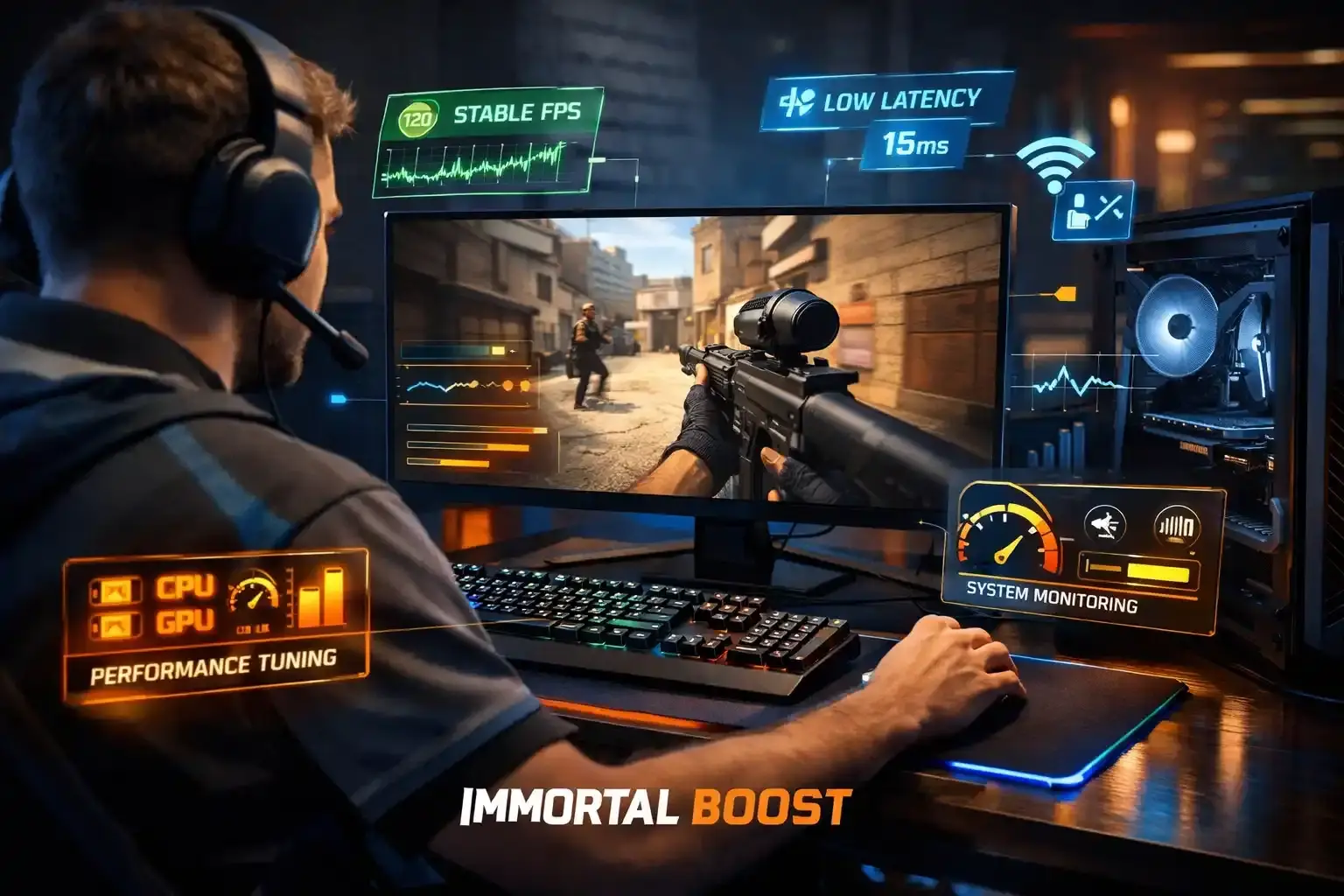
This 2026 guide focuses on practical, proven FPS optimizations for CS2, covering system tweaks, in-game settings, launch options, network stability, and separate recommendations for low-end and high-end PCs to ensure smooth gameplay across all setups.
Struggling to climb the ranks in Counter Strike and stuck with low placement matches? Our Counter Strike placement boost service quickly elevates your rank, letting you start competitive games at the level you deserve. Get started today and experience faster wins, higher ranks, and smarter matchmaking.
Related Guides:
- Best sites to sell CS2 Skins
- Top 20 CS2 Players
- How to Bunny Hop complete guide
- How to Rent Skins in Counter-Strike 2
Quick FPS Boost Checklist for Counter-Strike 2
| Optimization Area | Recommended Action | FPS Impact |
|---|---|---|
| Graphics Drivers | Update to latest GPU drivers | High |
| Background Apps | Close browsers, Discord, cloud apps | Medium–High |
| Display Mode | Use Fullscreen (Exclusive) | Medium |
| Resolution | Lower to 1280×960 or 900p | High |
| In-Game Settings | Lower textures, shadows, AA | High |
| V-Sync | Disable (in-game & GPU software) | Medium |
| Launch Options | Use FPS-boost launch commands | Medium |
| FPS Cap | Cap slightly above refresh rate | Medium |
| Network Setup | Ethernet + nearby servers | Performance stability |
Update Graphics Drivers
Outdated GPU drivers are one of the most common causes of poor performance in CS2. Driver updates often include game-specific optimizations that directly improve FPS and stability.


Keeping your graphics drivers updated ensures your GPU is fully optimized for the latest CS2 updates.
Close Background Applications
Background applications consume CPU and RAM resources that CS2 needs to maintain stable FPS.
Browsers with multiple tabs, Discord, cloud sync tools, and auto-start programs should be closed before launching the game to avoid unnecessary performance drops.
Prioritize CS2 in Task Manager
Setting CS2 to a higher priority ensures your CPU allocates more resources to the game.
Steps:
- Launch CS2
- Open Task Manager (Ctrl + Shift + Esc)
- Go to Details
- Find
cs2.exe - Right-click → Set priority → High
Note: Do not use Realtime, as it can cause system instability and hurt FPS consistency.
Lower Resolution if Needed
Lowering resolution is one of the most effective ways to improve FPS.
Popular competitive resolutions:
- 1280×960 (4:3) – balanced clarity and performance
- 900p or 720p – maximum FPS boost on weaker systems
Many players prefer 4:3 stretched resolutions for improved enemy visibility.
Optimize In-Game Video Settings
In-game settings have the biggest direct impact on FPS in CS2.
Recommended CS2 Video Settings
| Setting | Recommended Value | Reason |
|---|---|---|
| Resolution | 1280×960 (4:3) or 1920×1080 | Balanced clarity and performance |
| Texture Quality | Low / Medium | Reduces GPU load |
| Shader Detail | Low | Improves FPS consistency |
| Shadow Quality | Low | CPU-intensive |
| Anti-Aliasing | Off or 2x MSAA | Minimal clarity gain above this |
| Ambient Occlusion | Disabled | Major FPS drain |
| V-Sync | Off | Prevents input lag |
| Motion Blur | Disabled | No competitive benefit |
Disable V-Sync
V-Sync reduces screen tearing but introduces input lag, which negatively affects reaction time in CS2. Disabling it improves responsiveness and keeps FPS more consistent.
Make sure V-Sync is disabled both in CS2 settings and in your GPU control panel.
Configure Steam Launch Options
Steam launch options apply performance tweaks before CS2 loads.
Recommended Launch Options:
+fps_max 0 -forcenovsync -high -softparticlesdefaultoff
+mat_disable_fancy_blending 1 +r_dynamic 0
Apply these via:
Steam → Library → Right-click CS2 → Properties → Launch Options.
Reduce Ping and Network Lag
High ping can cause stuttering even with high FPS.
To reduce network-related issues:
- Use Ethernet instead of Wi-Fi
- Close background downloads
- Avoid unnecessary VPNs
- Play on nearby servers
Stable ping complements stable FPS for smoother gameplay.
Cap Your FPS for Stability
Capping FPS prevents inconsistent frame pacing.
Example:
fps_max 144For better frame pacing, RivaTuner Statistics Server can be used instead of the in-game cap.
Best FPS Settings for Low-End PCs
Low-end PCs can still run CS2 smoothly with the right settings. The focus should be on consistency over visuals.
Recommended Settings for Low-End Systems
| Setting | Low-End Recommendation | Reason |
|---|---|---|
| Resolution | 1280×960 or 720p | Major FPS boost |
| Texture Quality | Low | Reduces VRAM usage |
| Shader Detail | Low | Improves stability |
| Shadow Quality | Disabled / Low | Heavy CPU load |
| Anti-Aliasing | Off | Frees GPU resources |
| Ambient Occlusion | Disabled | Significant FPS drain |
| V-Sync | Off | Avoids input lag |
| Motion Blur | Disabled | No gameplay benefit |
Additional Low-End PC Tips
- Close all background apps before playing
- Use Fullscreen (Exclusive) mode only
- Cap FPS slightly above refresh rate for stability
- Avoid running overlays and recording software
These adjustments can dramatically improve playability on older or weaker systems.
Best FPS Settings for High-End PCs
Even high-end PCs can experience FPS drops if misconfigured.
Recommended optimizations:
- Enable XMP in BIOS to unlock full RAM speed
- Use tools like UserBenchmark to check for underperforming components
High-end systems still benefit from the same in-game and launch optimizations.
Frequently Asked Questions For Counter Strike
What is the best video mode for Counter-Strike 2?
| Mode | Recommendation |
|---|---|
| Fullscreen (Exclusive) | Best |
| Borderless / Windowed | Not recommended |
Are these FPS changes safe?
Yes. All changes are safe and reversible.
Should FPS be capped or uncapped in CS2?
Capping FPS is recommended for smoother and more consistent gameplay.
Conclusion
High and stable FPS is essential for competitive performance in Counter-Strike 2. By optimizing system settings, in-game options, launch commands, and network stability — and by tailoring settings for low-end or high-end PCs — players can achieve smoother and more reliable gameplay.
Consistency is more important than raw FPS numbers. Proper optimization ensures better aim, faster reactions, and a stronger CS2 experience in 2026.