

Every pro in Counter-Strike 2 watches demos. Not because it’s fun — because grinding matches without reviewing them just reinforces your mistakes at full speed. If you keep dying to the same off-angle, whiffing the same spray, or getting caught on the same rotation, a demo shows you the exact frame it happens and hands you something specific to fix. This guide covers everything: how to download your replays, control playback, and actually turn them into rank.
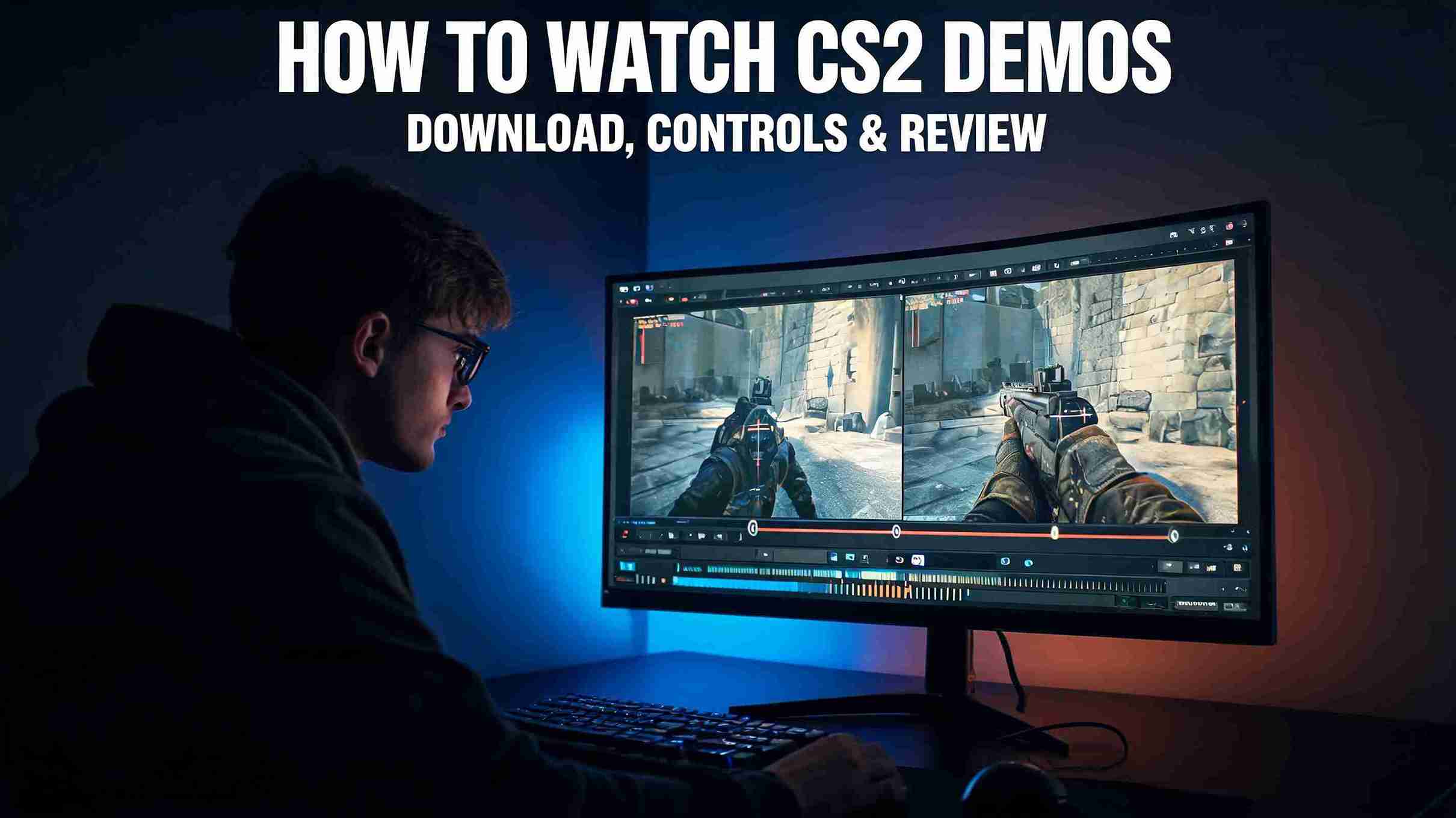
We’ll go from the basics — downloading a recent match and opening the demo viewer — through to the advanced tools most players never touch: free camera, X-ray vision, a one-hand review bind setup, and a workflow that cuts a full match review from ten minutes down to three. Whether you just want to clip a clutch or you’re serious about climbing, this is the complete 2026 CS2 demo guide.
Watching demos shows you what to fix — but sometimes you just want the rank now. Our CS2 boosting services put pro players on your account to push your Premier rating or Competitive rank fast, safely, and without cheats. Learn from your demos and climb at the same time.
Related Guides:
- When to Sell Your Skins and When to Hold Them Longer
- Best CS2 Settings for Maximum FPS 2026
- How to Rank Up Faster in CS2 2026
GOTV vs POV Demos — Know the Difference First
Before downloading anything, understand there are two kinds of CS2 demos, and they do different jobs:
- GOTV demos are server-side recordings of the entire match from every player’s perspective. You can switch to anyone on the server at any moment — your teammates, your enemies, all ten players. These are what you download through the CS2 client for Premier and Competitive matches. They’re larger (50–150 MB) but they’re the ones you want for real analysis, because you can see what the enemy was doing while you died.
- POV demos are client-side recordings of a single player’s perspective, captured with the record console command. Smaller files, and they capture your exact inputs and mouse movement — good for reviewing your own crosshair placement, but you can’t switch to other players.
For 99% of improvement work, you want GOTV demos. That’s what the rest of this guide focuses on.

How to Watch Your Recent Matches in CS2
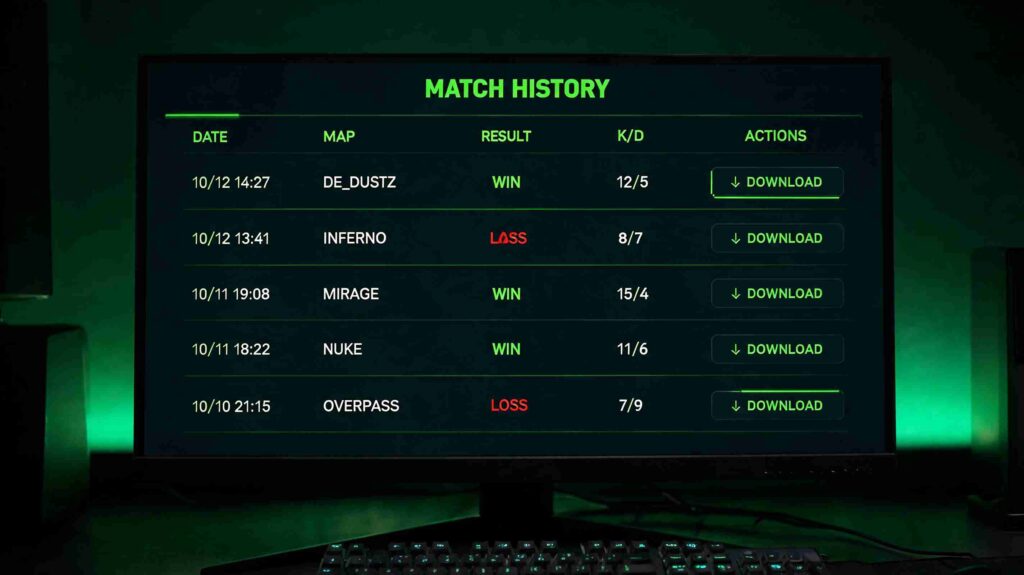
Valve automatically records your Premier and Competitive matches on their servers, so your recent games are ready to download straight from the client. Here’s the fastest route:
- Launch CS2
- Go to Play → Watch → Your Matches (the TV icon)
- Find the match you want and click it to see the scoreboard
- Click Download GOTV Demo
- Once it downloads, a Watch button appears — click it to load straight into the demo
If the download button doesn’t work: this is a known Valve quirk. Right-click the Download GOTV Replay button, copy the link address, and paste it directly into your browser to grab the file manually. Then move it into your demos folder (covered below).
The Fastest Method — Download by Match ID
There’s a quicker way if you’re comfortable with the console. Every CS2 match has a unique match ID. Open the console with the tilde key (~) and type:
csgo_download_match [MATCH_ID]
The demo downloads automatically straight to your replays folder — no menu clicking, no manual file moving. You can grab the match ID from your in-game match history or from third-party stats sites.
How to Watch Older & Downloaded Demos
The in-game system only keeps your most recent matches — new games replace old ones. To keep a demo permanently or watch one you downloaded from elsewhere, you’ll place the file manually and load it via console.
Step 1 — Find your CS2 demos folder. The default path in 2026 is:
Steam\steamapps\common\Counter-Strike Global Offensive\game\csgo\replays
Step 2 — Move and rename the file. Drop your .dem file into that replays folder. If it downloaded as a zipped or .bz2 file, extract it first. Rename it something short and memorable — r1.dem is far faster to type than a 20-character match ID string, and something like mirage_comeback.dem helps you find it later.
Step 3 — Load it from console. Open the console (~) and type:
playdemo replays/r1
Note the replays/ prefix — it’s required when the file sits in that subfolder rather than the root csgo folder. And leave off the .dem extension. Alternatively, just double-click any .dem file in the replays folder from File Explorer and it’ll launch CS2 and start playback automatically.
One important note: once a demo is saved on your PC, it won’t expire — but major CS2 updates can sometimes make old demos unplayable. If you want to keep a highlight forever, also record a clip of it rather than relying on the .dem alone.
CS2 Demo Controls — The demoui Panel
Once a demo is playing, press Shift+F2 (or type demoui in the console) to open the demo control panel. This is your command center. Here’s what each control does:
| Control | What It Does |
|---|---|
| Timeline Scrubber | Drag to jump to any moment in the match |
| Play / Pause | Toggle playback (or press Spacebar) |
| Back / Forward 15s | Skip a short chunk without touching the scrubber |
| Round Navigation | Jump instantly to the next or previous round |
| Speed Control | 0.25x, 0.5x, 1x, 2x, 4x, up to 8x max |
| Camera Mode | Toggle first-person, third-person, and free camera (Mouse3 / scroll-click) |
| Player Cycling | Left/right click or number keys 1–0 to follow any player |
The key console commands if you’d rather type than click:
- demo_gototick [tick] — jump to an exact tick/moment
- demo_timescale [speed] — set playback speed (0.25 to 8; demo_timescale 8 clears a 3-minute half in under 25 seconds)
- demo_togglepause — pause and resume
- demo_info — show info about the current demo
The Tools Most Players Never Use
This is where demo review goes from “watching a replay” to actually understanding what happened. These three tools are the difference between casually spectating and genuinely learning.
Free Camera
In the demo UI, open the camera mode dropdown and select Free Camera (default shortcut: C). Now you can fly anywhere on the map — WASD to move, Q/E for up and down, right-click-drag to look, scroll wheel to change fly speed. Free cam is the single best analysis tool in the game. Use it to check exactly where a utility landed from above, see what an angle looked like from the enemy’s side, or understand precisely what the opponent’s crosshair placement was when they peeked you — things the spectated POV never shows clearly.
X-Ray Vision
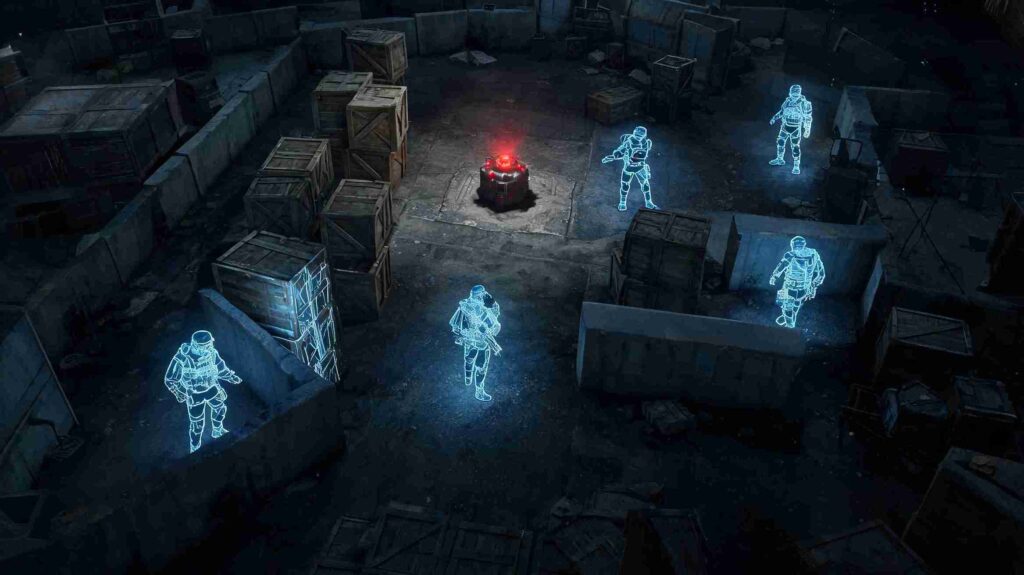
Type spec_show_xray 1 to see all players through walls during the demo. This is huge for studying positioning — you can watch exactly where enemies were standing while you were deciding whether to peek, and understand the information you didn’t have in the moment. Pair it with reviewing your crosshair placement to check whether your aim was actually where the enemy was.
Strip the HUD for Cleaner Analysis
Type cl_draw_only_deathnotices 1 to remove everything except the kill feed — no radar, no weapon readout, no health bar. It gives you a clean canvas for analyzing angles, positioning, and movement without visual clutter. Great for content creation too.
Note: some visual commands like FOV changes and fog removal require sv_cheats 1 (run it after loading the demo). Core playback commands — timescale, pause, goto — never need it.
The Pro Setup — Demo Review Binds
If you review demos regularly, typing commands every few seconds is a waste of time. Serious players bind the whole review workflow to one hand. Add this block to your console or autoexec.cfg and you’ll cut review time dramatically:
bind “P” “demo_togglepause”
bind “J” “demo_timescale 0.5”
bind “K” “demo_timescale 1”
bind “L” “demo_timescale 2”
bind “;” “demo_timescale 4”
bind “LEFTARROW” “demo_goto -2000 1 0”
bind “RIGHTARROW” “demo_goto 2000 1 0”
Why this layout works: the speed keys (J/K/L/;) sit next to each other on the home row, giving you a one-hand ramp from 0.5x through 4x. The arrow keys step the timeline in roughly 15-second chunks without touching the scrub bar. During active review you constantly cycle pause → rewind → slow-mo → normal → scan, and running that entire loop from one hand means no fumbling between mouse and keyboard while a death plays out in slow motion.
How to Watch FACEIT Demos
If you grind FACEIT, your match demos are available right after each game — but there’s a time limit. Go to the match room (within 30 days of the match), click Watch Demo to download it, extract the file into your CS2 game/csgo folder, rename it, and load it with playdemo just like any other demo. After 30 days FACEIT removes the demo, so grab the ones you want to study promptly.
Because Valve’s built-in demo access can be unreliable, a lot of players also use third-party platforms like Leetify or Scope.gg that automatically save your full match history and add analytics on top. If you want a permanent, searchable demo archive without manual downloading, those are worth setting up.
How to Actually Improve From Demos
Downloading a demo is easy. Learning from it is where most players fail — they watch the whole match at 1x speed, feel vaguely bad about their deaths, and learn nothing. Here’s a workflow that actually works:
- One session per loss, 20 minutes max. Don’t review every game. Review the ones that frustrated you, and keep it short.
- Pick one theme per session. Watch only for positioning, OR only for utility usage, OR only for crosshair placement — never all at once. A focused review with a single theme gives you exactly one thing to fix and test in your next game.
- Use max timescale to skip the boring parts. Blast through buy phases and the side you don’t care about at demo_timescale 8, then drop to 0.5x when you reach the round or duel you’re analyzing.
- Watch your deaths from the enemy’s POV. Switch to whoever killed you and rewind. Seeing what they saw — and when — teaches you more than watching your own screen ever will.
- Use free cam + X-ray on the rounds that mattered. For the pistol round that lost you the half or the clutch you threw, fly around and see the full picture with X-ray on.
Do this consistently and demo review becomes the fastest improvement tool you have. The best players aren’t just the ones who play the most — they’re the ones who watch, learn, and fix specific mistakes between games.
Turn Review Into Rank
Watching your demos tells you exactly what’s holding you back — but knowing the fix and grinding it out across 50 games are two different things. If you want to see the rank climb faster while you work on your fundamentals, there’s a shortcut.
For more CS2 guides, settings breakdowns, and rank-climbing tips across every update, dive into our latest gaming guides and updates.
Conclusion
CS2’s demo system is one of the most powerful free improvement tools in any competitive game — and most players barely scratch its surface. Now you know how to download your matches (including the fast match-ID method), open the demoui panel, use free camera and X-ray to see what you actually missed, bind the whole review loop to one hand, and grab your FACEIT demos before they expire.
But the real secret isn’t the commands — it’s the workflow. One focused review per loss, one theme at a time, watching your deaths from the enemy’s side. Do that between games and you’ll fix mistakes you didn’t even know you were making. Load up your last match, press Shift+F2, and become your own coach.
FAQs
How do I watch my last match in CS2?
Launch CS2, go to Play → Watch → Your Matches, click the match you want, and select Download GOTV Demo. Once it downloads, click the Watch button to load straight into the replay. Press Shift+F2 to open the demo controls. Valve automatically records your Premier and Competitive matches on their servers, so recent games are always available.
Where are CS2 demos saved?
Downloaded GOTV demos are saved in Steam\steamapps\common\Counter-Strike Global Offensive\game\csgo\replays. Manually recorded POV demos (using the record command) save to the game\csgo root folder. When loading a demo from the replays subfolder via console, use the replays/ prefix — for example, playdemo replays/yourfile.
What’s the difference between GOTV and POV demos in CS2?
GOTV demos are server-side recordings of the whole match from every player’s perspective — you can switch to any of the ten players. POV demos are client-side recordings of just your own perspective, captured with the record command. GOTV demos are larger but far better for analysis since you can watch your deaths from the enemy’s point of view.
How do I open the demo controls in CS2?
Press Shift+F2 or type demoui in the console to open the demo control panel. It gives you a timeline scrubber, play/pause, round navigation, speed control from 0.25x to 8x, and camera modes. You can also use console commands like demo_gototick to jump to an exact moment and demo_timescale to change speed.
How do I use free camera in a CS2 demo?
Open the demo UI, select Free Camera from the camera mode dropdown (default shortcut C), then fly with WASD, use Q/E for vertical movement, right-click-drag to look around, and scroll to adjust speed. Free camera lets you check utility landing spots, view angles from the enemy’s side, and analyze positioning that the spectated POV can’t show.
How long are FACEIT demos available to download?
FACEIT demos are available for 30 days after the match. Go to the match room, click Watch Demo to download it, extract the file into your CS2 game/csgo folder, and load it with the playdemo command. After 30 days FACEIT removes the demo, so download any matches you want to keep promptly. Tools like Leetify and Scope.gg can auto-save your demos permanently.
Sources & Methodology
All demo download steps, folder paths, and console commands in this guide reflect the live Counter-Strike 2 client as of 15 July 2026 and were verified against current community documentation. Console command behaviour and folder paths can change with major CS2 updates; if a command fails, check the latest in-game console output. Demo review workflow recommendations reflect established community practice.
- CSDB.gg — CS2 Demo Review Guide (GOTV vs POV, playback controls)
- Switchblade Gaming — CS2 Demo Console Commands & Review Binds
Counter-Strike 2 is a trademark of Valve Corporation. This article is independent analysis and is not affiliated with or endorsed by Valve. Game features and commands may change with updates; details reflect the date of publication.