


PC gaming gives you full control over how your game looks and performs. Unlike consoles, where settings are limited, Monster Hunter Wilds on PC allows deep customization to balance visuals, performance, and responsiveness.
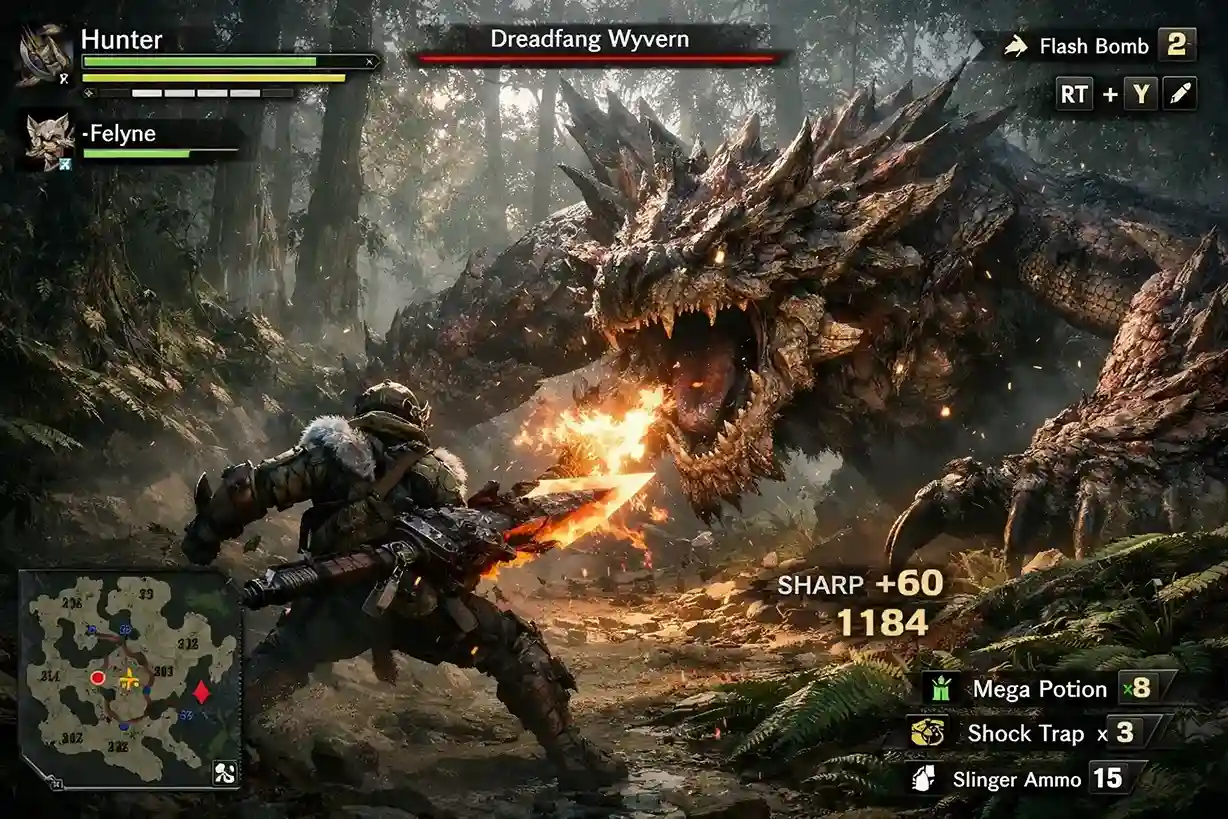
This guide provides the best settings for performance and visual clarity, along with practical tweaks to improve FPS, reduce input lag, and make gameplay smoother.
If your game feels smooth now but fights still feel harder than they should, it is usually not the settings anymore it is your gear. Moving into stronger sets like Monster Kills can give you better survivability and more consistent damage so you can handle tougher monsters with more control.
Related Guides:
Monster Hunter Wilds Best Settings
Monster Hunter Wilds Tips and Trick
Minimum System Requirements for Monster Hunter Wilds
Before adjusting settings, make sure your system meets the baseline requirements.
| Component | Requirement |
|---|---|
| OS | Windows 10/11 (64-bit) |
| CPU | Intel i5-10400 / Ryzen 5 3600 |
| RAM | 16 GB |
| GPU | GTX 1660 / RX 5500 XT |
| Storage | 75 GB |
| Network | Broadband |
Insight: These specs are considered mid-range in 2026 and should deliver stable performance with optimized settings.
Best Graphics Settings for Performance and Visual Balance
These settings are optimized for the best performance-to-visual ratio, meaning you get smooth gameplay without sacrificing important visual clarity.



Recommended Graphics Settings
| Setting | Value |
|---|---|
| DLSS / FSR | Quality |
| Frame Generation | On |
| Anti-Aliasing | Off |
| Render Scaling | Off |
| Texture Quality | High |
| Texture Filtering | 8x |
| Mesh Quality | High |
| Fur Quality | Low |
| Cloud Quality | Low |
| Grass Quality | Low |
| Grass Sway | Enabled |
| Wind Simulation | Low |
| Surface Quality | Low |
| Sand Quality | Low |
| Water Effects | Disabled |
| Render Distance | High |
| Shadow Quality | Low |
| Distant Shadows | Low |
| Shadow Distance | Near |
| Ambient Lighting | Medium |
| Contact Shadows | Disabled |
| Ambient Occlusion | Medium |
| Screen Space Reflection | Off |
| Volumetric Fog | Low |
| Variable Rate Shading | Balanced |
Why These Settings Work
- Low shadows and effects → Higher FPS
- High textures → Maintains visual clarity
- DLSS/FSR → Boosts performance without major quality loss
- Disabled reflections → Removes heavy GPU load
Best Display Settings for Smooth Gameplay
Display settings directly affect input lag, responsiveness, and stability.
Recommended Display Settings
- Screen Mode: Borderless Window
- Resolution: Native
- Aspect Ratio: Native
- Ultra-wide UI Correction: Disabled (enable only if needed)
- Frame Rate Limit: Disabled
- Cutscene Frame Rate: Off
- Background Frame Rate: Off
- HDR Output: Auto
- V-Sync: Disabled
- NVIDIA Reflex: Disabled
Key Insight
- Disabling V-Sync reduces input lag
- Native resolution ensures clarity
- Borderless mode improves multitasking stability
How to Increase FPS in Monster Hunter Wilds
Even with optimized settings, system-level tweaks can significantly improve performance.
Practical FPS Boost Tips
1. Disable Background Services
- Turn off unused Windows services
- Frees up CPU and RAM resources
2. Close Background Applications
- Disable startup apps
- Close browsers, overlays, and unnecessary software
3. Use an SSD
- Faster loading times
- Reduced stuttering during gameplay
4. Use DLSS, FSR, or Lossless Scaling
- Increase performance on lower-end systems
- Maintain playable frame rates
Performance Framework (Simple Rule)
- Low FPS → Lower effects + use DLSS/FSR
- Stable FPS → Increase textures gradually
- High FPS → Improve visual settings selectively
Best Mouse Settings for Consistency
Mouse settings directly affect aiming and camera control.
Recommended Mouse Settings
- Turn OFF Mouse Acceleration (in-game)
- Turn OFF Enhanced Pointer Precision (Windows)
Why This Matters
Disabling these settings ensures:
- Consistent movement
- Accurate aiming
- No artificial input smoothing
Best Keyboard Settings for Control
Unlike graphics, keyboard settings are highly personal. However, some options improve gameplay universally.
Recommended Keyboard Settings
- Sprint Behavior: Hold
- Auto-Sheathe: OFF
Windows Keyboard Settings
- Repeat Delay: Short
- Repeat Rate: Fast
Key Insight
Custom keybinds should match your comfort—not someone else’s setup.
Best Camera and Misc Settings
Camera control plays a major role in tracking monsters and reacting quickly.
Recommended Camera Settings
- Camera Speed: Very High
- Auto-Centering Camera: OFF or Low
- Camera Distance: Max
Additional Settings
- Menu Animations: OFF
- Focus Camera Behavior: Large Monsters Only
Why These Settings Help
- Better visibility during fights
- Reduced camera snapping
- Improved control during chaotic combat
Common Mistakes That Hurt Performance
- Leaving V-Sync enabled
- Using high shadow and reflection settings
- Running background apps while gaming
- Using mouse acceleration
- Not adjusting camera settings
Conclusion
Optimizing your settings in Monster Hunter Wilds gives you a clear advantage:
- Higher FPS
- Lower input delay
- Better visibility
- Smoother gameplay
However, settings alone won’t carry you. Once your game runs smoothly, focus on learning mechanics, improving timing, and understanding monster behavior.
FAQ (Monster Hunter Wilds Settings Guide)
What are the best settings for FPS in Monster Hunter Wilds?
Use low shadows, disabled reflections, DLSS/FSR on Quality, and frame generation enabled for the best FPS.
Should I turn off V-Sync?
Yes. Turning off V-Sync reduces input lag and improves responsiveness.
Is DLSS or FSR worth using?
Yes. Both significantly improve performance with minimal visual loss.
Why is mouse acceleration bad?
It creates inconsistent movement, making aiming less precise.
Do settings improve skill?
No. Settings improve performance and responsiveness, but skill comes from practice.