Discover everything you need to know about best Graphics Settings for Maximum FPS & Visibility in Escape from Tarkov.
Escape from Tarkov is a multiplayer tactical first-person shooter video game in development by Battlestate Games. FPS and Visibility are the two main factors that affect your gameplay and overall performance, especially in tough encounters. The better the FPS and Visibility, the more you can enjoy the game without facing any lag. Adjusting settings like Resampling, Post FX, Anti-Aliasing, and Screen Space Reflections can provide you with better FPS in Escape From Torkov. Adjust your settings to maximize your frames per second while maintaining the game’s visuals. In this guide, we’ll discuss all the settings that can affect your FPS and visibility along with some additional tips to avoid these problems.
Optimizing your Escape from Tarkov settings can give you a competitive edge, but if you’re looking to take your gameplay to the next level, our EFT boost services can help. Whether you need help with quests, leveling, or gearing up, our professional players are here to assist you. Get the boost you need and dominate Tarkov like never before
What Factors Affect FPS In Escape From Tarkov?
Players are tired of complaining about the performance issues, especially during intense combat. Modifying your in-game settings allows you to neglect the overall performance and lower FPS. Several factors can impact your FPS, including hardware, in-game settings, and specific software. You get lower FPS as the higher graphics settings require more GPU and CPU power. The lower resolution is guaranteed with the features like shadows, reflections, and ambient occlusion. GPU, CPU, RAM, and storage influence how Escape From Tarkov runs on your PC. Updating the drivers and the window improves the performance. Overheating or power-saving settings can also affect the FPS.
Display Settings
Display settings is crucial for escape From Torkov. However, they don’t influence graphic quality but they can enhance your performance and gameplay.
| Setting | Explanation | Recommendation |
| Aspect Ratio | A standard for modern monitors. | 16:9 |
| Screen Resolution | Put it to your monitor’s native resolution. Lowering it allows you to blur texture. | Native |
| Aspect Ratio | Fullscreen grants decent performance, but we recommend you use borderless for doing multitasking | 16:9 |
| Screen Mode | A standard for modern monitors | Full Screen |
| Monitor | Choose the monitor that displays the game | Main Display |
Get better quality images by selecting the high resolution, but it can affect your GPU. Your best bet is to stick with your monitor’s native resolution. 1440p or 1080p is the best option for all the players out there. The best Aspect ratio for most players is 16:9, that works for many monitors. You need to avoid the aspect ratio until you have a wide monitor. Putting the Screen Mode on Fullscreen makes sure that the game takes priority in processing power. This allows for a smoother gameplay and Borderless is your best bet here if you prefer moving between more applications. Turning on the VSync can stop screen tearing by syncing the normal frame rate with the current rate of your monitor. If your game runs at 80 FPS without VSync and your screen refreshes at 60Hz, then you may face glitches.
Best Graphics Settings in Escape from Tarkov
Graphics settings significantly affect your overall performance. You need to start with the medium preset and adjust each option to maintain balance with high FPS.
| Setting | Description | Recommendation |
| Z-Blur | Turning off this effect removes all unnecessary blurring in several views. | Off |
| Grass Shadows | Turn off this setting, increase the FPS, especially if you’re on older hardware. | Off |
| Sharpness | This allows you to reduce overly sharp visuals if you keep it at a lower value. | 0.6 |
| NVIDIA Reflex Low Latency | It improves response time and mitigates input lag. | On |
| Anisotropic Filtering | Turning on this setting sharpens the texts, affecting the performance. | On |
| SSR (Screen Space Reflections) | This setting improves FPS by 3–5 frames. | Off |
| HBAO | It boosts FPS if turned off | Off |
| AMD FSR 1.0 & 2.2 | Get better performance by turning it off | Off |
| NVIDIA DLSS | This setting is not best for EFT but offers better performance | Off |
| Resampling | Increase the texture to get it according to your resolution. It’s better to turn it off until you’re required high FPS. | 1x off |
| Anti-Aliasing | It has jagged edges on items | TAA |
| Overall Visibility | Lower this setting to improve performance. | 1,000–1,500 |
| Object LOD Quality | Keep this setting in mid as it controls the detail level of items | 2.0 or 2.5 |
| Shadow Quality | Lower this setting to improve FPS | Low |
| Texture Quality | Keep this setting from medium to high. For improved performance, keep it low. | Medium – High |
Get detailed textures without affecting much on performance by keeping the Texture Quality on High. The game looks muddy if you prefer to drop it to Medium or Low. Keeping low the Shadow Quality can make a space for GPU power, allowing you to enhance the FPS. TAA is the best option to untangle objects. This does not affect performance, making it important to keep visual quality. Keeping the NVIDIA Reflex Low Latency ON mitigates the delay between your actions and their effect.
Additional Tips For Optimizing Tips
There are some better ways to get more FPS besides more settings, which provide a solid performance boost. These methods include in-game and out-game modifications.
- Disable Background Apps- This allows you to free up system resources that are commonly utilized by EFT.
- Overclock GPU- This increases your overall FPS and grants a slight enhancement to your GPU’s clock speed.
- Install EFT on SSD- This installation allows you to get into raids quickly while avoiding frame drops. It also lets you decrease the loading times during loading screens.
- Update Windows- Updating Windows and drivers makes your system smooth and mitigates compatibility issues.
- Update GPU Drivers- This makes sure for the optimal performance for the content updates and new patches.
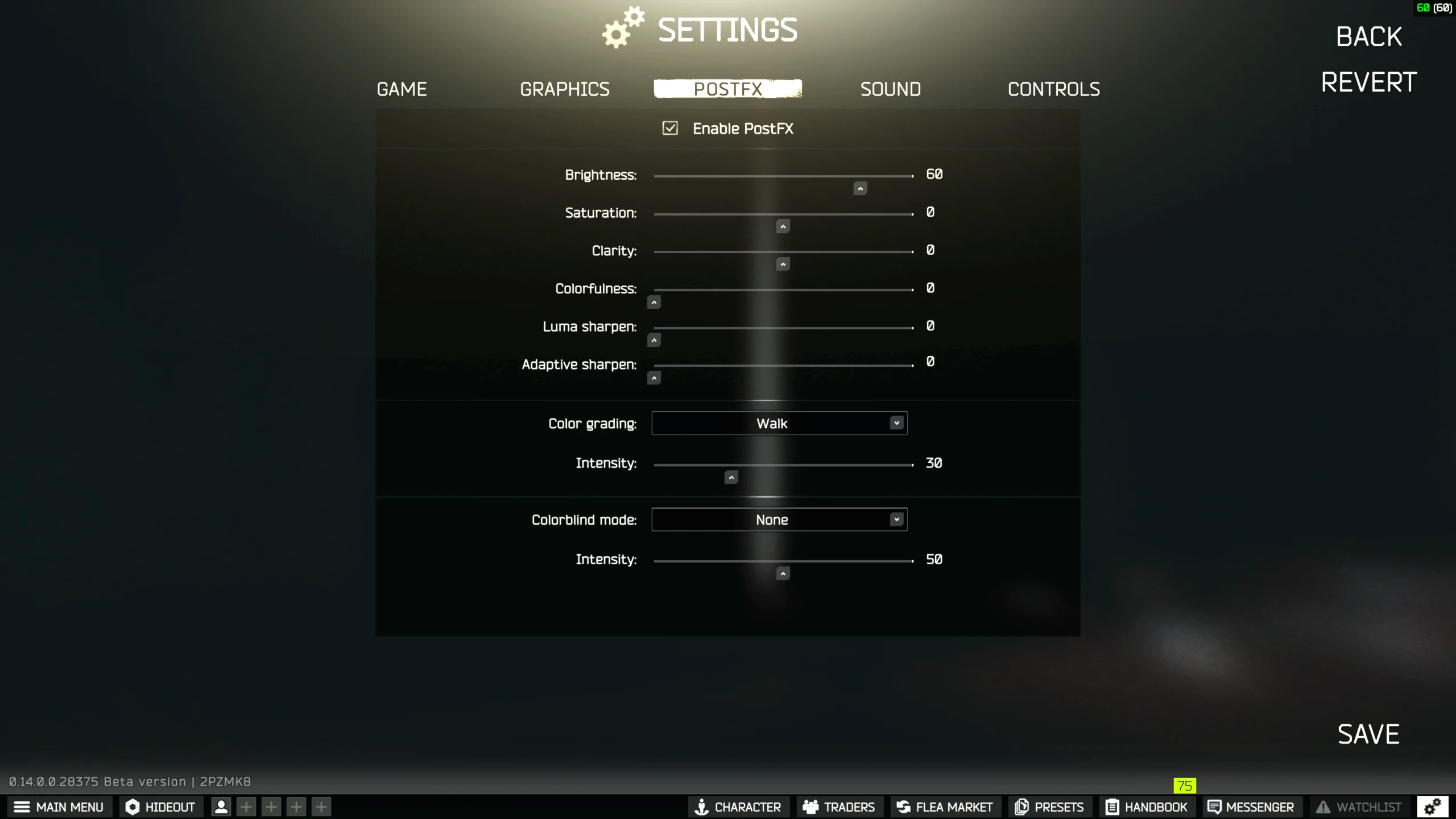
FX For Better Visuals
It’s important to note that it doesn’t impact the game’s performance instead it gives you better visibility. This allows you to locate the enemies more easily, giving you an edge in tough encounters.
- Saturation- Set this according to your preference.
- Clarity- Adjust to your preference.
- Luma Sharpen- Keep this at 100 as it makes everything clear & cut.
- Adaptive Sharpen- Make everything clear by keeping this setting at 100.
- Brightness- Adjust to your preference. We recommend you put it on 100 to see everything better in the dark.
Frequently Asked Questions
What is the best graphics setting for EFT?
The best graphics settings are the ones that run smoothly on your PC.
What is the average FPS for Escape from Tarkov?
The average FPS for Escape From Torkov is around 80 FPS.
How can you make EFT run better on PC?
You can put Shadows on the Low, turn off HBAO, enable Nvidia Reflex, run the game at native display resolution.
What is the best setting for visibility in Escape From Tarkov?
The best setting for visibility in Escape From Tarkov is between 1,000 and 1,500.